Self-Service Billing Overview for Shippers
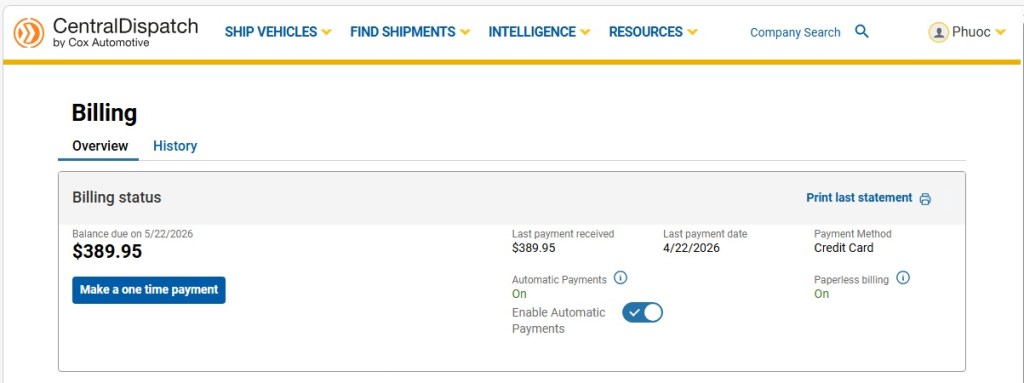
Pricing data is for illustration purposes only and does not reflect actual prices
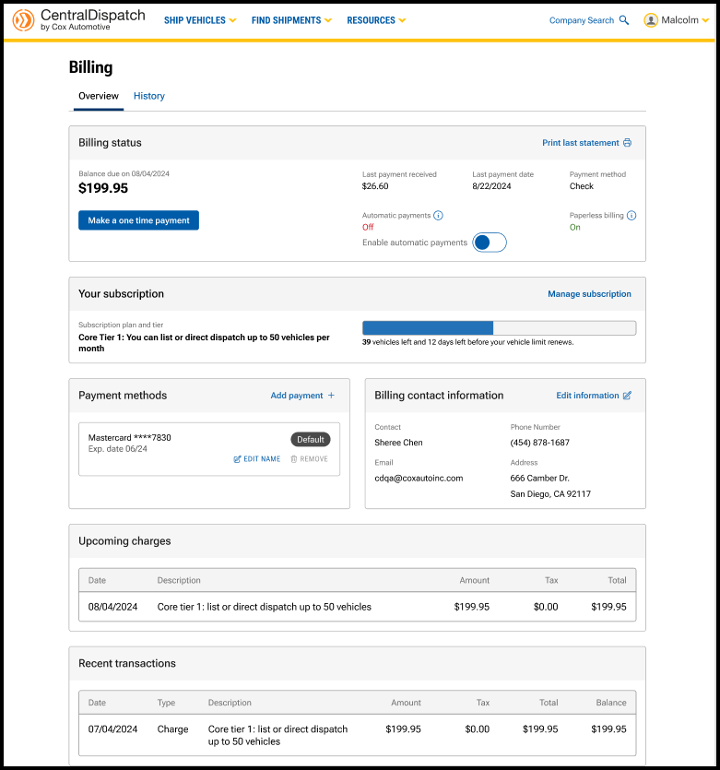
The billing page has been updated with a reorganized layout to prioritize the most important information and provide an intuitive, user-friendly experience. Multi-factor authentication provides an extra layer of security to the account and is required to make any changes to the page. Users with the role of Owner or Admin in Manage Users have permission to make changes after the multi-factor authentication. The billing page is available from the account name dropdown, by selecting Billing.
Billing Status
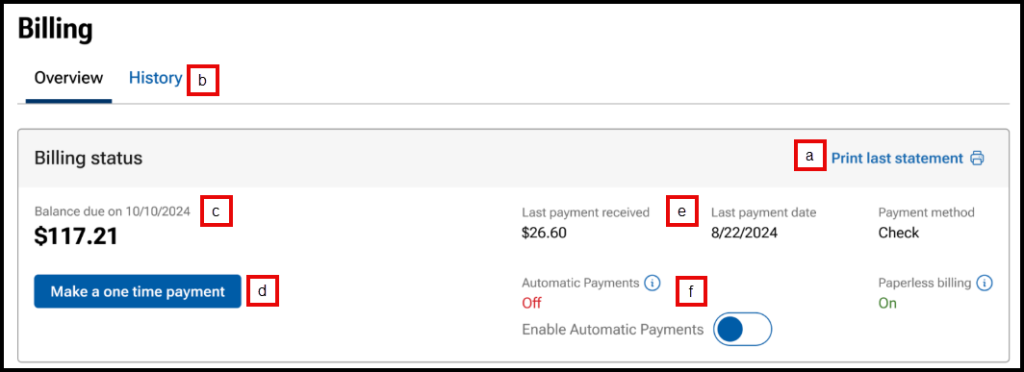
- Link available to Print last statement
- Click on the History tab to view and print previous months’ statements
- View Balance due and the due date
- Note: Please note the amount displayed is not due until the Balance due date
- Make a payment by clicking on Make a one time payment
- Note: If moving to a new tier, make a one time payment for only the dollar amount difference between the tiers to get access to the new tier
- Choose to pay balance or another amount
- Choose payment method
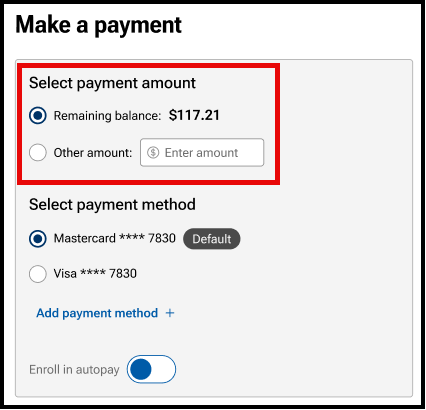
- Users can also click toggle to Enroll in autopay when making a payment
- Previous payment information including payment amount, date and payment method
- Toggle to Enable Automatic Payments on or off
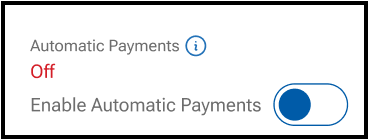
Result: A confirmation message will appear for users to confirm automatic payments
Your Subscription

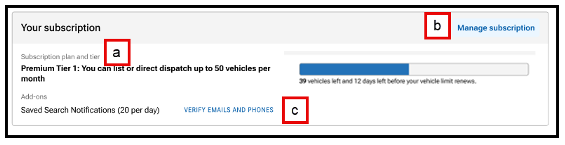
- View your subscription plan and any add-ons to your account, such as notifications
- Tier limits are based on vehicles that are posted or dispatched
- Each vehicle that is listed or dispatched counts toward the monthly vehicle quota
- When the tier limit is reached, it will trigger a notification to the user, and additional vehicles will not be able to be dispatched or listed until next billing cycle, and the user cannot upgrade to the next tier
- Click on Manage subscription to view the subscription plan options, tiers available, and any add-ons selected
Steps to Upgrade and Downgrade
- View current plan, tier, add-ons, and price
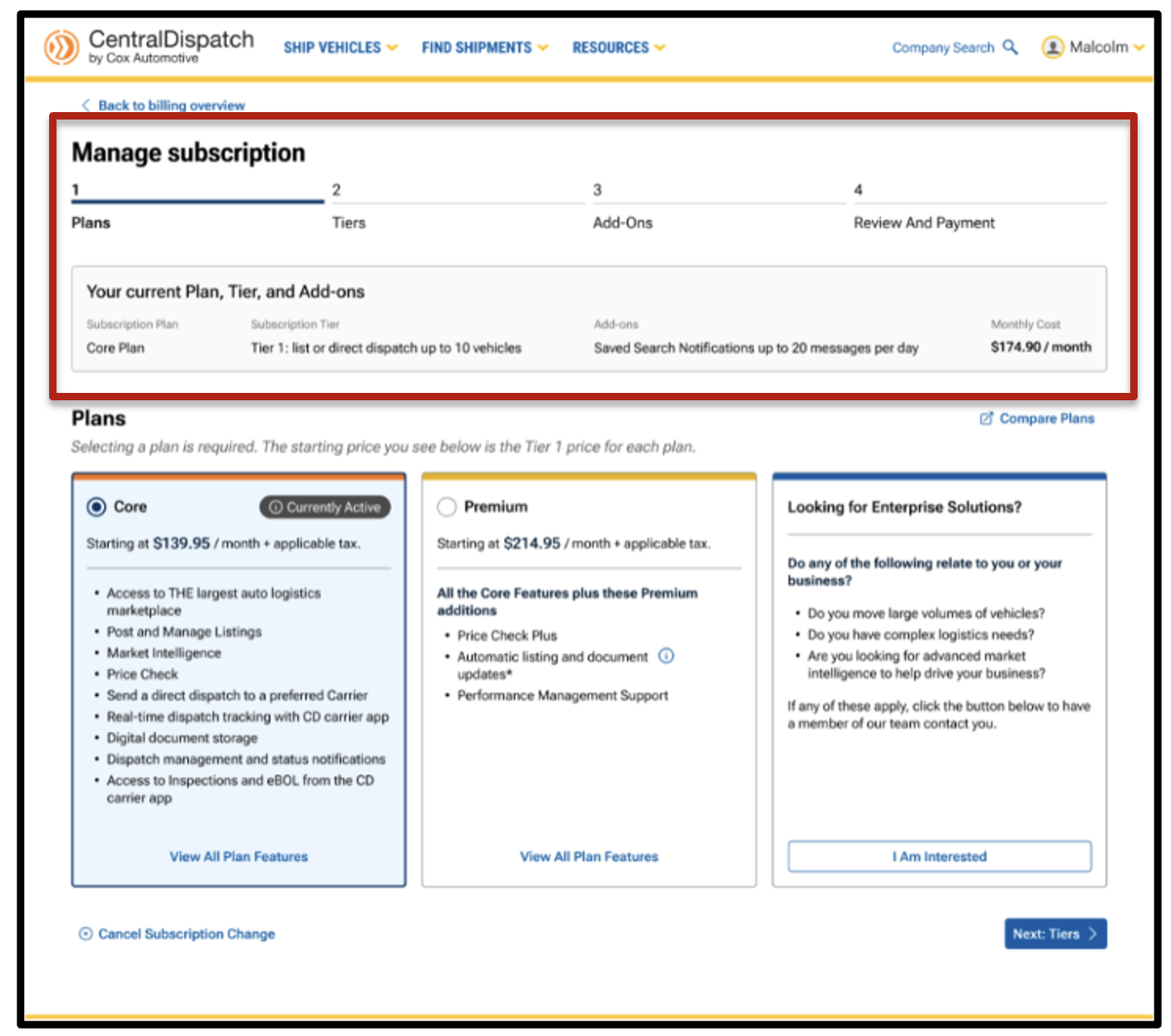
- Choose plan and tier
- Customers can move back and forth to adjust selections without starting over, reducing frustration and confusion
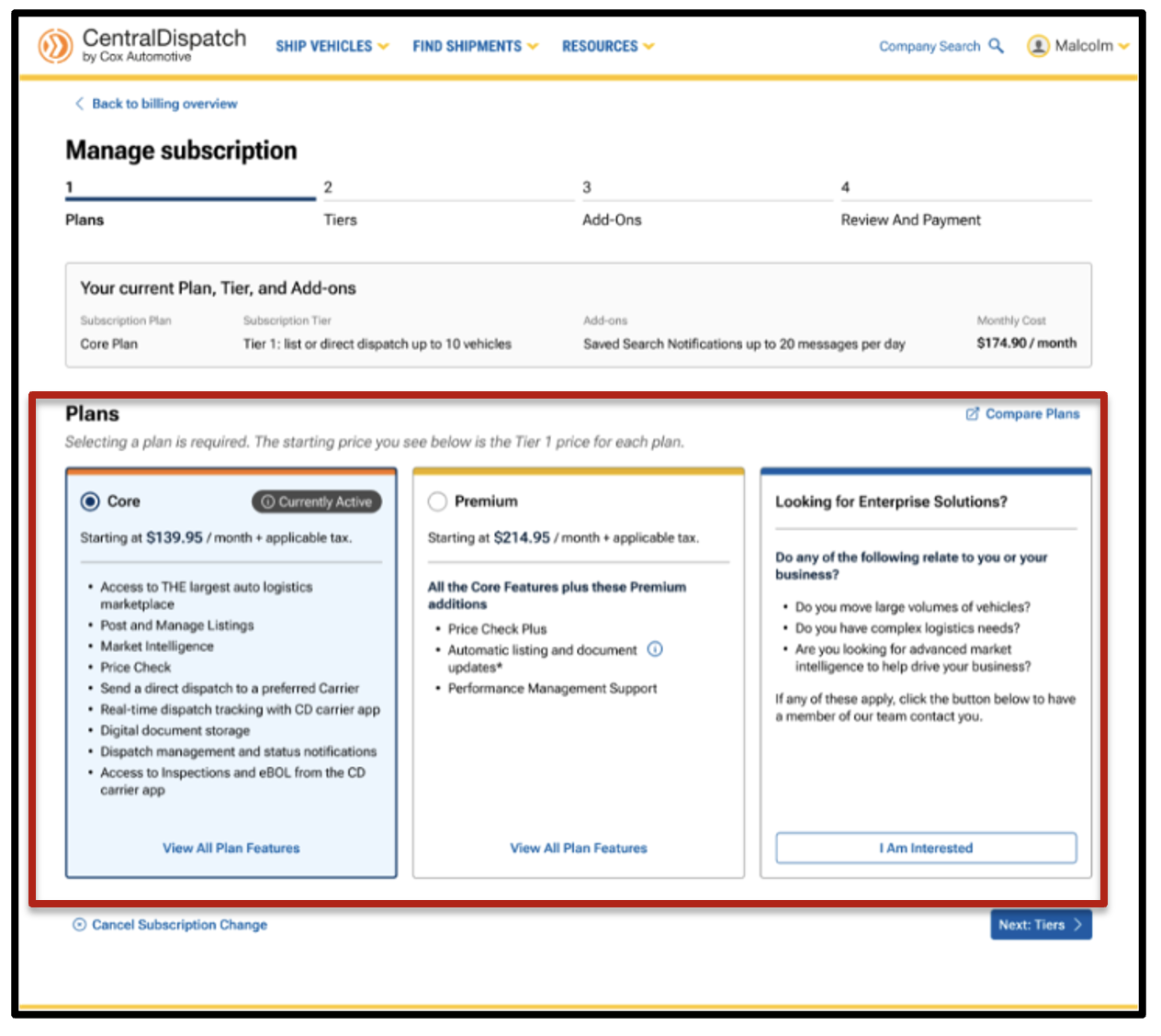
- Customers can move back and forth to adjust selections without starting over, reducing frustration and confusion
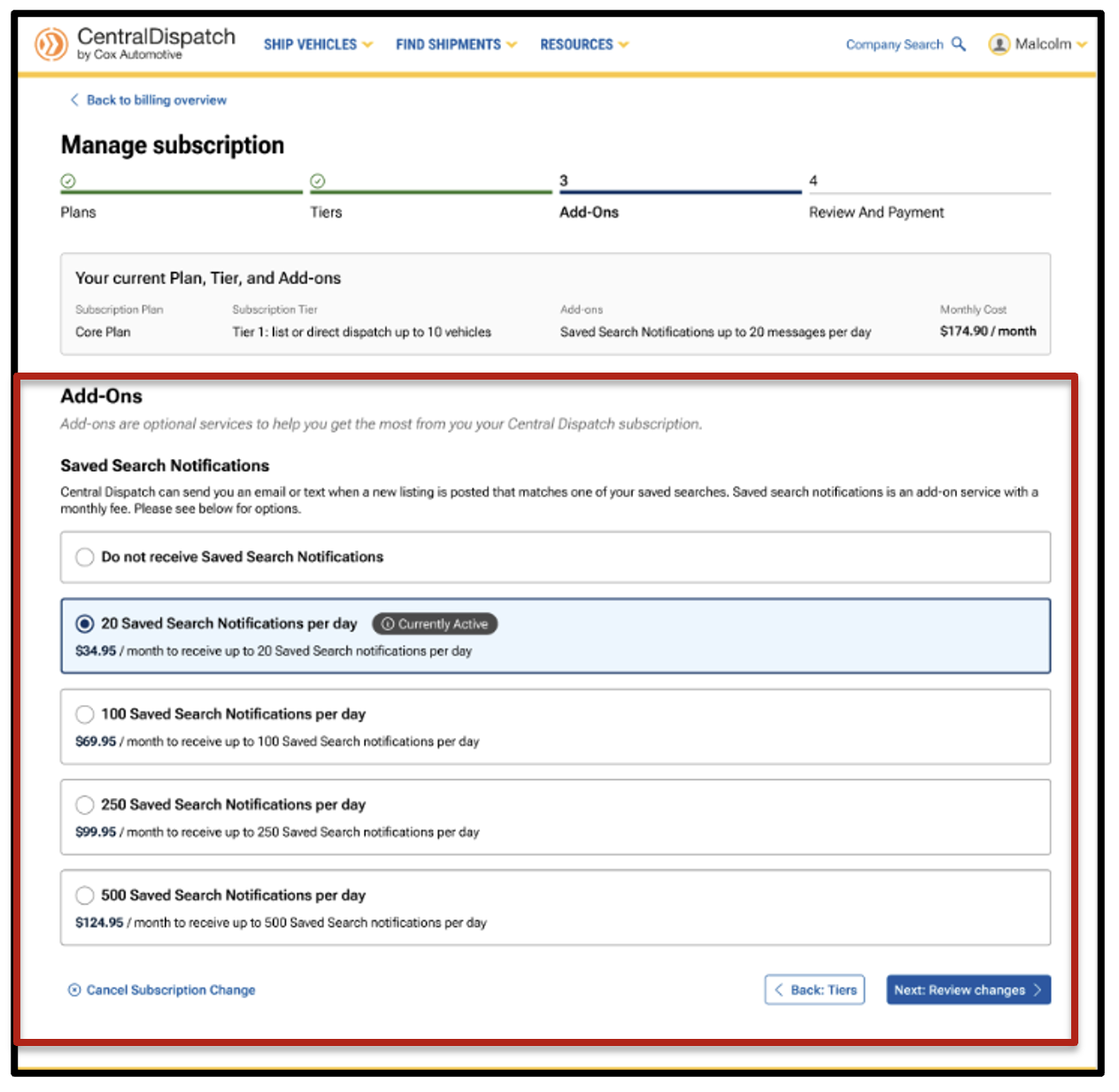
- Choose add-ons
- Customers have clear visibility into available add-ons (such as Saved Search Notifications), with pricing and quantity displayed inline
- The system defaults to current selections with simple opt-in and opt-out options
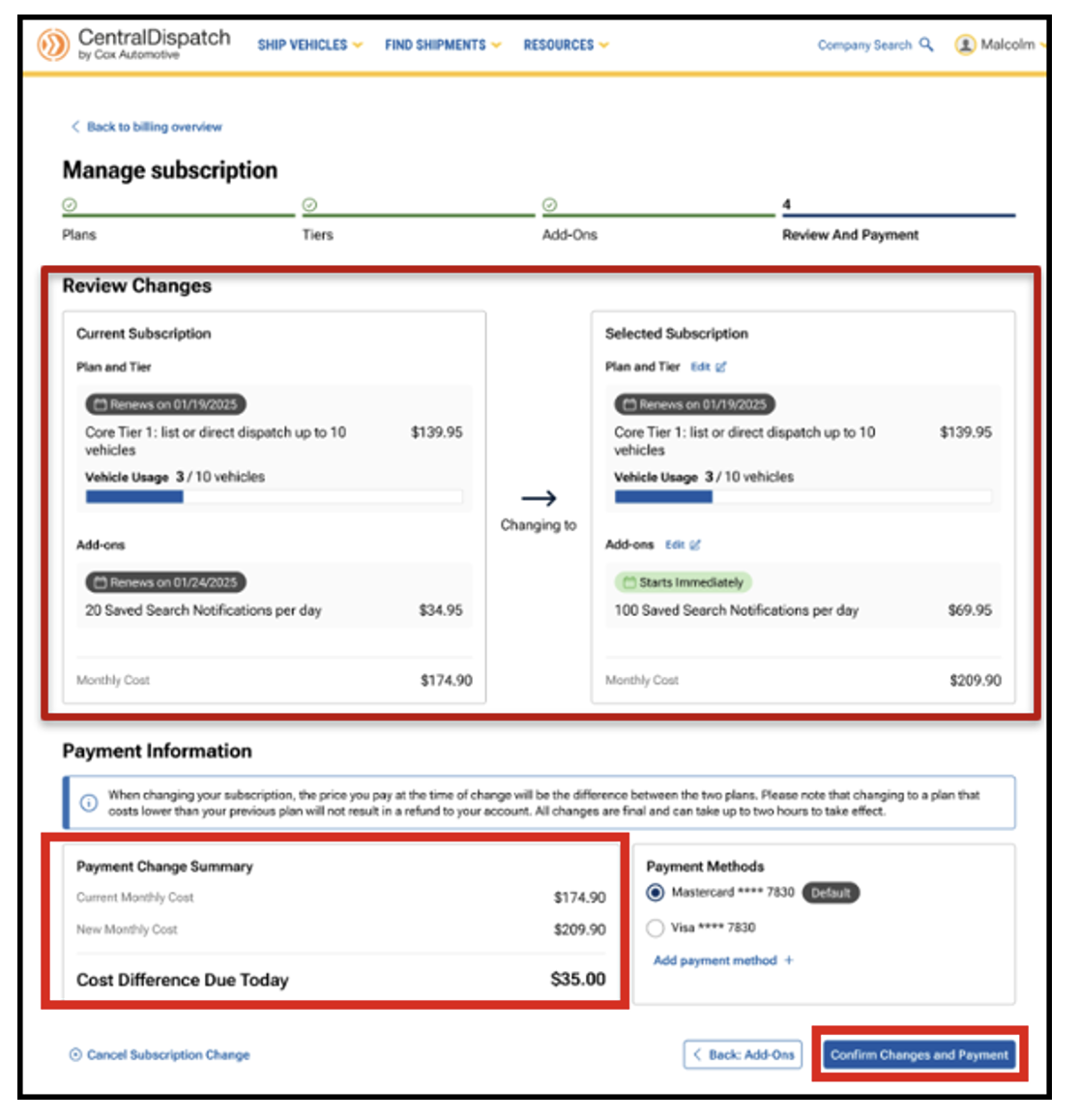
- Review side-by-side comparison of changes and payment information
- Costs, upgrades, and differences due today are shown clearly before checkout, helping customers understand exactly what they’re paying for
- Customers can clearly see their current plan vs. proposed changes before confirming anything
- Payment Information will display the summary of charges based on changes selected. It will also display the Cost Difference Due Today based on the difference between the previous plan and new plan selected.
- NOTE: Cost Difference Due Today does not include past due charges that are due.
- NOTE: Cost Difference Due Today does not include past due charges that are due.
Payment Methods and Billing Contact Information

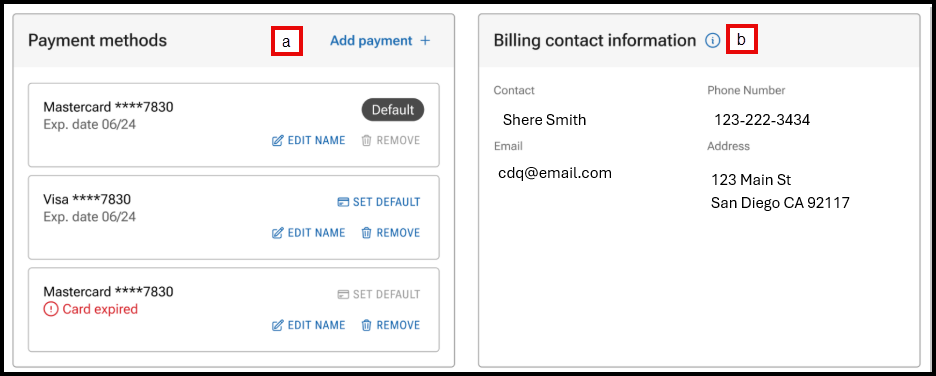
- Manage payment methods, including setting a default card, and adding or removing a card
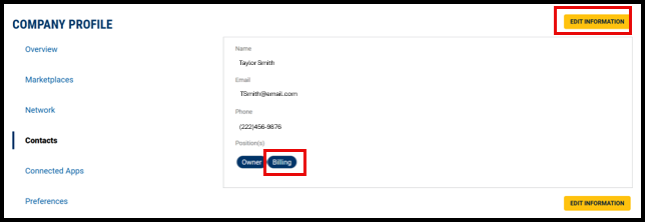
- Click on EDIT INFORMATION to update billing contact information
- Result: The Company Profile page will open to the Contacts section and Billing Contact
- Result: The Company Profile page will open to the Contacts section and Billing Contact
Upcoming Charges and Recent Transactions
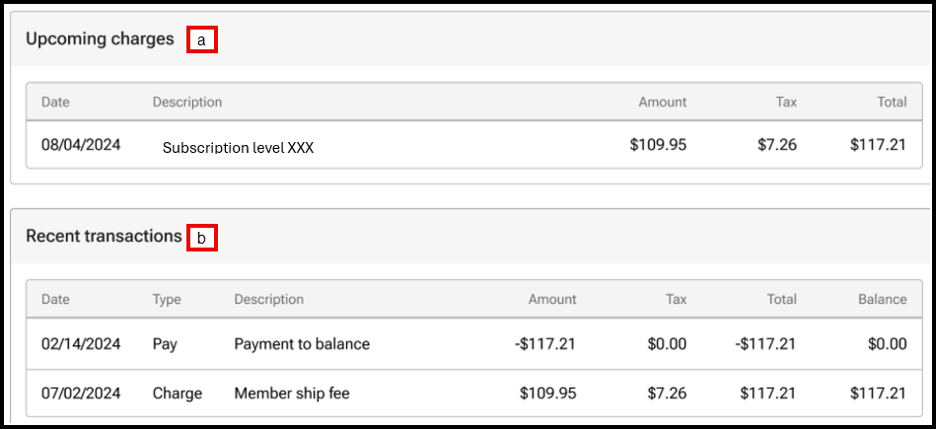
- View upcoming charges
- View the five most recent transactions. Users can view additional transactions under the History tab on the Billing page
Billing History tab
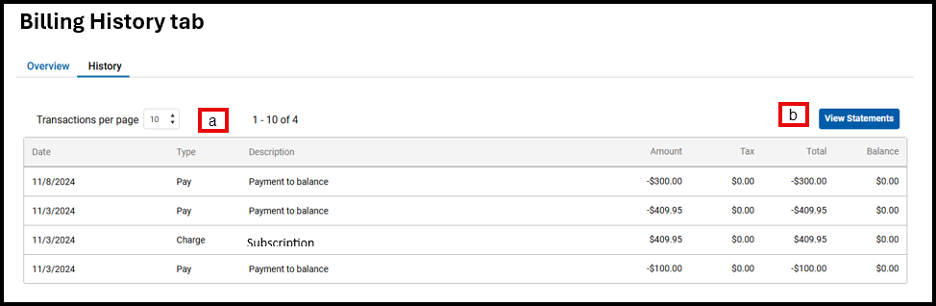
- Select the number of transactions per page to view the previous transactions
- Click View Statement to view statements for previous months
FAQs
Yes. The new experience is designed to be self‑service. Customers can upgrade or downgrade on their own using the step‑by‑step process and see all changes clearly before confirming.
No. Nothing is applied until the customer confirms on the final Review and Payment screen.
Yes. The final review page shows a side‑by‑side comparison of the current subscription and the new selection, including plans, tiers, add‑ons, and cost.
Yes. Customers can move back to earlier steps (Plans, Tiers, or Add‑Ons) and make changes without starting over.
Add‑ons are shown as separate, optional selections with pricing clearly displayed. Customers can opt in or opt out and adjust quantities as needed before confirming.
Yes. The system clearly shows:
- The new monthly cost
- Any cost difference due today
- When changes take effect
There are no surprises at checkout.
Downgrades follow the same guided process. Customers can see the impact of the downgrade, including feature changes and pricing, before confirming.
Upgrades take effect immediately, and any pricing difference due today is shown on the final screen before confirmation. Downgrades take effect on the next billing cycle.
The guided layout and plan comparisons help customers understand their options. Agents can also walk them through the screens, and customers can review and change selections before confirming.
The new process is designed to be clearer, easier to follow, and more transparent—helping customers feel confident with making changes while reducing frustration and support calls.