

Transactional ratings and reviews are a vital part of the Central Dispatch platform. They help everyone make better partnering decisions, reward top-performing businesses, and serve as a place to disclose issues that come up during a job. It’s important that you fully understand our ratings system, so you can leave reviews that are clear, fair, and accurate.
Because leaving more accurate ratings doesn’t just help others — it helps you grow your business network and transact with new partners confidently!
About each rating category
- Overall: When evaluating your overall experience working with a partner, consider if you would do business with them again. Keep in mind the entire experience of the job, not just the outcome.
- Timeliness: Timeliness refers to meeting the contracted timing for pickup, delivery, and any other agreed checkpoints. If it was late, were there external delays that held up the shipment? Was it local or long-distance? How late was it?
- Communication: This rating measures how easy it was to get in touch with a partner, and how clear they made their instructions or expectations. Were they easy to work with? Were they quick to respond to questions? Were they professional?
- Documentation: Use the documentation rating to evaluate their handling of important paperwork like gate releases and invoicing. Were all documents made easily available? Was the paperwork ever sent late? Was it filled out completely and correctly?
The importance of leaving a written review
While rating across the different categories is important, it sometimes doesn’t tell the full story. Use the “Additional Comments” section to get into more details about working with a partner, and explain why you gave the ratings you did.
This is the place to call out specific things you liked about working with a particular partner, which is extremely helpful for other businesses who might have similar needs or preferences as your own.
So don’t be afraid to get detailed! And if you need to call out things that caused problems on a job, keep your tone and language constructive. All comments are reviewed to make sure our content guidelines are being followed.
NEW: Rating windows are now aligned with payment dates
With the introduction of dynamic rating windows, Central Dispatch now automatically adjusts the rating period based on the load’s payment terms. That means carriers can now rate shippers based on real payment timelines, and ensure ratings reflect payment behavior.
Resolving disputes privately
Once posted, Central Dispatch ratings and reviews cannot be changed. So before leaving a negative rating or review, you’ll be prompted to reach out to the other party and resolve any disputes directly with them. Be sure to take advantage of this feature if you think any problems or misunderstandings can be solved privately.
Control when your review is published, and rate with confidence!
You can now choose when your review is published, giving you the confidence to share your experience. Selecting “Publish Later” means your review will only be publicly posted after your partner has also submitted their rating, or the 14-day review window passes, making it easier to provide honest feedback, and helping foster more transparent partnerships.
What if my review was rejected?
If your review is ever rejected, you can always resubmit within 45 days of the job’s completion. Just visit the “Rejected Ratings” tab on your business profile page to see exactly why your rating was rejected. You’ll also receive an email notification with a full list of our content guidelines and can access them when writing a comment.
Rating canceled transactions
If someone you’ve partnered with cancels a job for any reason, you can still give them one overall rating and write a review. Please note any specific issues related to the cancellation, and partner with more confidence, knowing you’ll be able to hold everyone accountable for every transaction on Central Dispatch.
For a step-by-step video guide on Transactional Ratings, click here!

At Central Dispatch, our biggest priority is your security. We’re continually working to ensure that our marketplace is the safest place to find loads online, and part of that is making sure carriers know how to keep their account secure and partner with shippers safely.
As we continuously update our security features, ensure only shippers can post loads, and suspend users who do not abide by our terms, there are some easy steps you can take to conduct business on the Central Dispatch marketplace in complete confidence.
Best practices for carriers:
Best practices for carriers:
- Sharing your Central Dispatch log in information can lead to unauthorized access and security breaches. Eliminate risk and secure your account with the User Management system, which gives each person in your organization their own username and password. Select the right user type to control access to sensitive data.
- Make sure your current email address and phone number are both linked to your owner account, so you can use our multi-factor login process. It’s the best way to protect against unverified logins. Your phone number is the preferred verification method.
- To protect your security, all user accounts designated as Owners are locked and cannot be deleted or edited by any other user, including other Owners. Business owners can contact Client Care to make edits to Owner accounts.
- To ensure a safer, more secure platform, we make your FMCSA information visible on your company profile. Be sure to confirm that all your details are correct and up to date, so you can stand out as a verified carrier and strengthen your reputation.
- Always use the Price Check tool to ensure you’re getting a fair market rate.
- Always check the shipper’s Transactional Ratings to gauge how the company has performed on prior jobs and interacted with other carriers.
- Always complete the dispatch process on the Central Dispatch platform. Transactions made over the phone or otherwise outside our platform create more uncertainty, and higher potential for conflicts between the two parties.
- Keep communications with shippers within the Central Dispatch platform whenever possible to avoid conflicts and security risks.
- The auto-transport industry is facing an increase in fraud involving phone calls, emails, and texts. Always be cautious of outreach asking you for account or personal information or requesting that you access unknown links or files. Contact us to report any suspicious activity.
- Always verify that any text, call, or email communication sent to you is from the assigned shipper before following any new delivery instructions.
- Download the Central Dispatch carriers mobile app and have your drivers enable Real-Time Tracking to foster more transparency with shipping partners, and stand out as a trusted carrier.
- At the end of each job, be sure to rate and review your shipper. It’s the easiest way for carriers to identify bad actors, and help other users avoid problems. Now, you can choose when your review is published – ensuring you provide honest feedback and contribute to a more transparent marketplace.
We welcome feedback from our users. Please reach out to us with any concerns or suggestions, so we can work to continually roll out new security features and policies that help make the Central Dispatch marketplace a safe place to operate for everyone.
Shippers and carriers are responsible for determining what partners they want to do business with and validating any credentials. Central Dispatch is not a party to any agreements.
Pricing data is for illustration purposes only and does not reflect actual prices
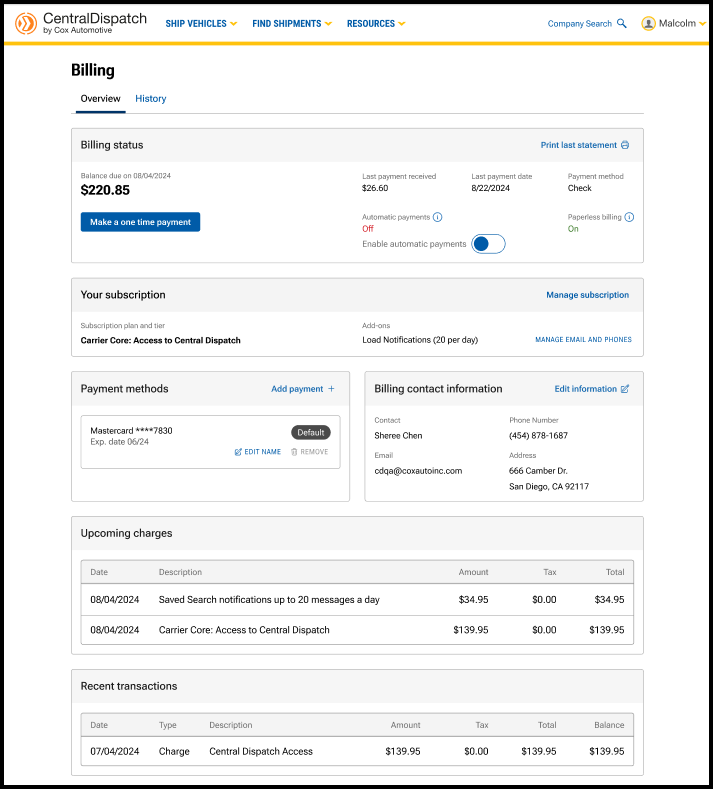
The billing page has been updated with a reorganized layout to prioritize the most important information and provide an intuitive user-friendly experience. multi-factor verification provides an extra layer of security to the account and is required to make any changes to the page. Users with the role of Owner or Admin in Manage Users have permission to make changes after the multi-factor authentication. The billing page is available from the account name dropdown, by selecting Billing.
Billing Status
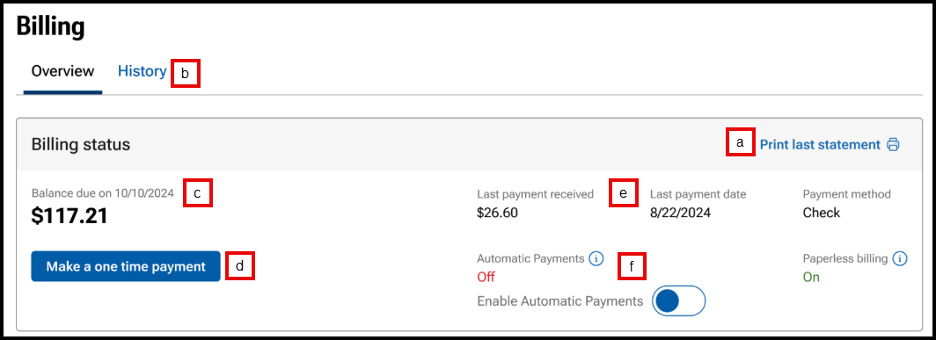
- Link available to Print last statement.
- Click on the History tab to view and print previous months’ statements.
- View Balance due and due date.
- Make a payment by clicking on Make a one-time payment.
- Choose to pay balance or another amount.
- Choose payment method.
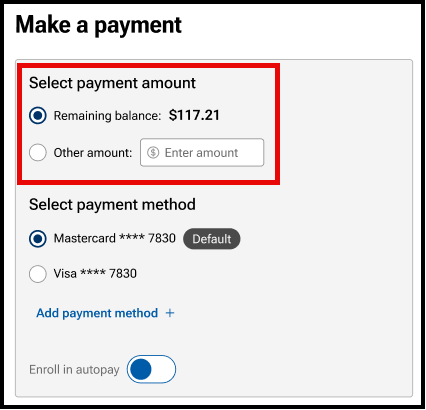
- Users can also click toggle when making a payment to enroll in autopay.
- Previous payment information including payment amount, date and payment method.
- Toggle to Enable Automatic Payments on or off.
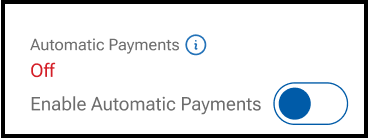
Result: a confirmation message will appear for users to confirm automatic payments.
Your Subscription
View your subscription plan and any add-ons

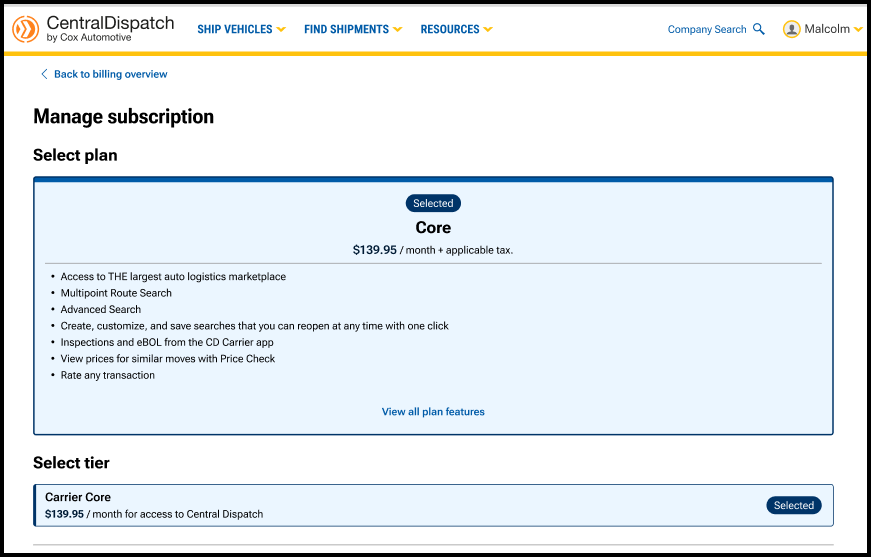
- Click on Manage subscription to view current subscription and select or change add-ons such as Notifications for search and Price Check Plus.
- View current subscription.
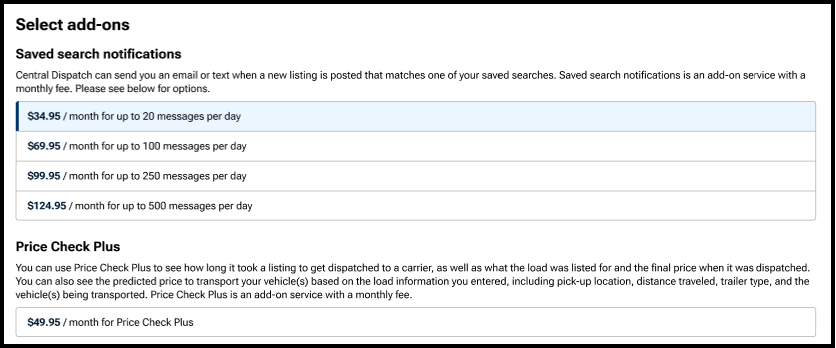
- Click on any add-on to select it.
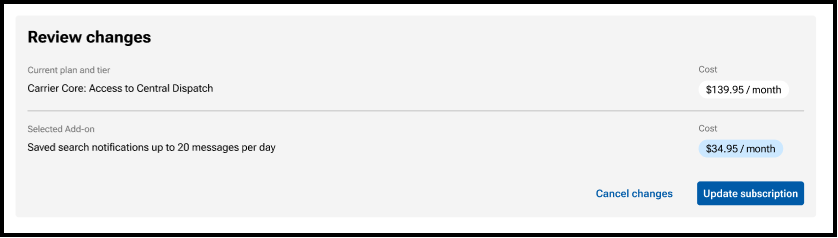
- Review changes and click Update subscription.
- Note: Changing Notifications tiers:
- If Adding Notifications, user will need to verify the contact email and phone for the notifications.
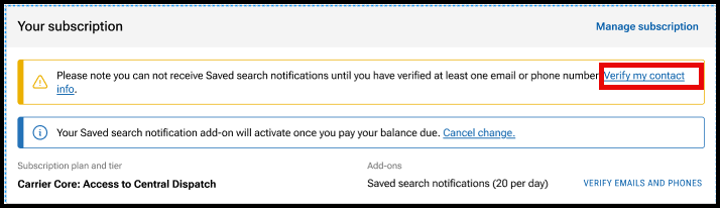
- If Removing Notifications, the change will take place on the next billing cycle.
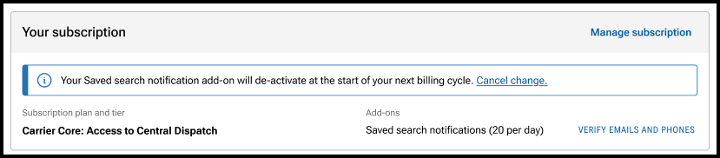
- If Adding Notifications, user will need to verify the contact email and phone for the notifications.
- View current subscription.
- If signed-up for Notifications for search the MANAGE EMAIL AND PHONE link will be visible to update email and phone to send notifications.
- Result: Communications tab on the Company Profile page will open to update or add email and phone for notifications.
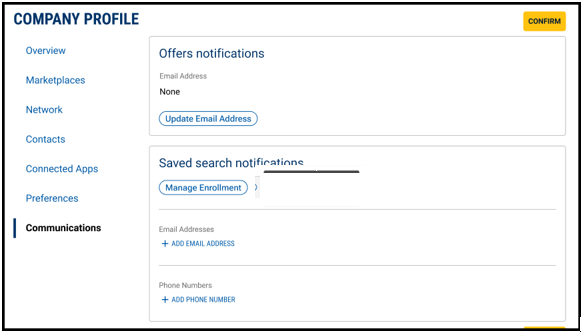
- Result: Communications tab on the Company Profile page will open to update or add email and phone for notifications.
Steps to Upgrade and Downgrade
- View current plan, tier, add-ons, and price
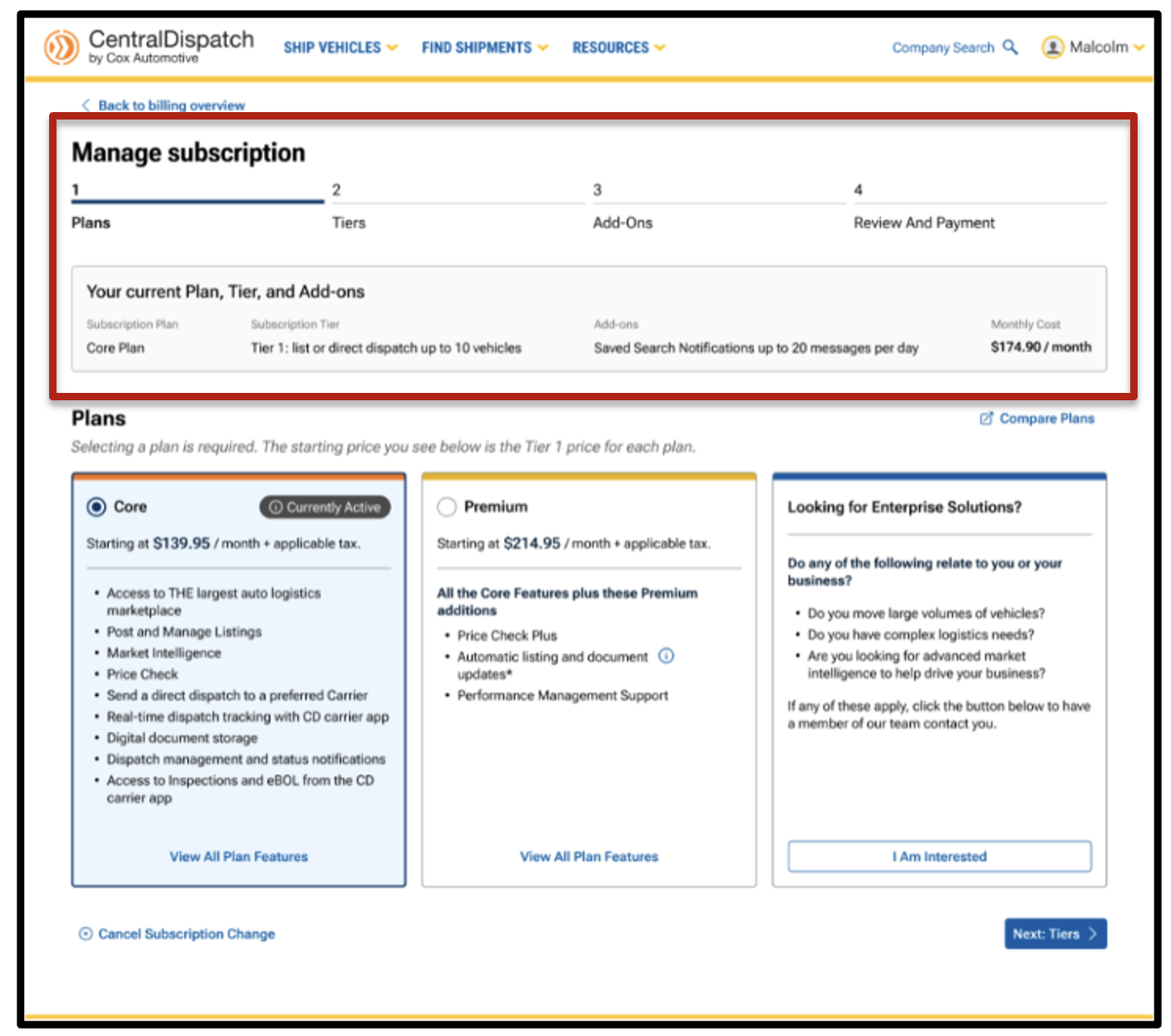
- Choose plan and tier
- Customers can move back and forth to adjust selections without starting over, reducing frustration and confusion
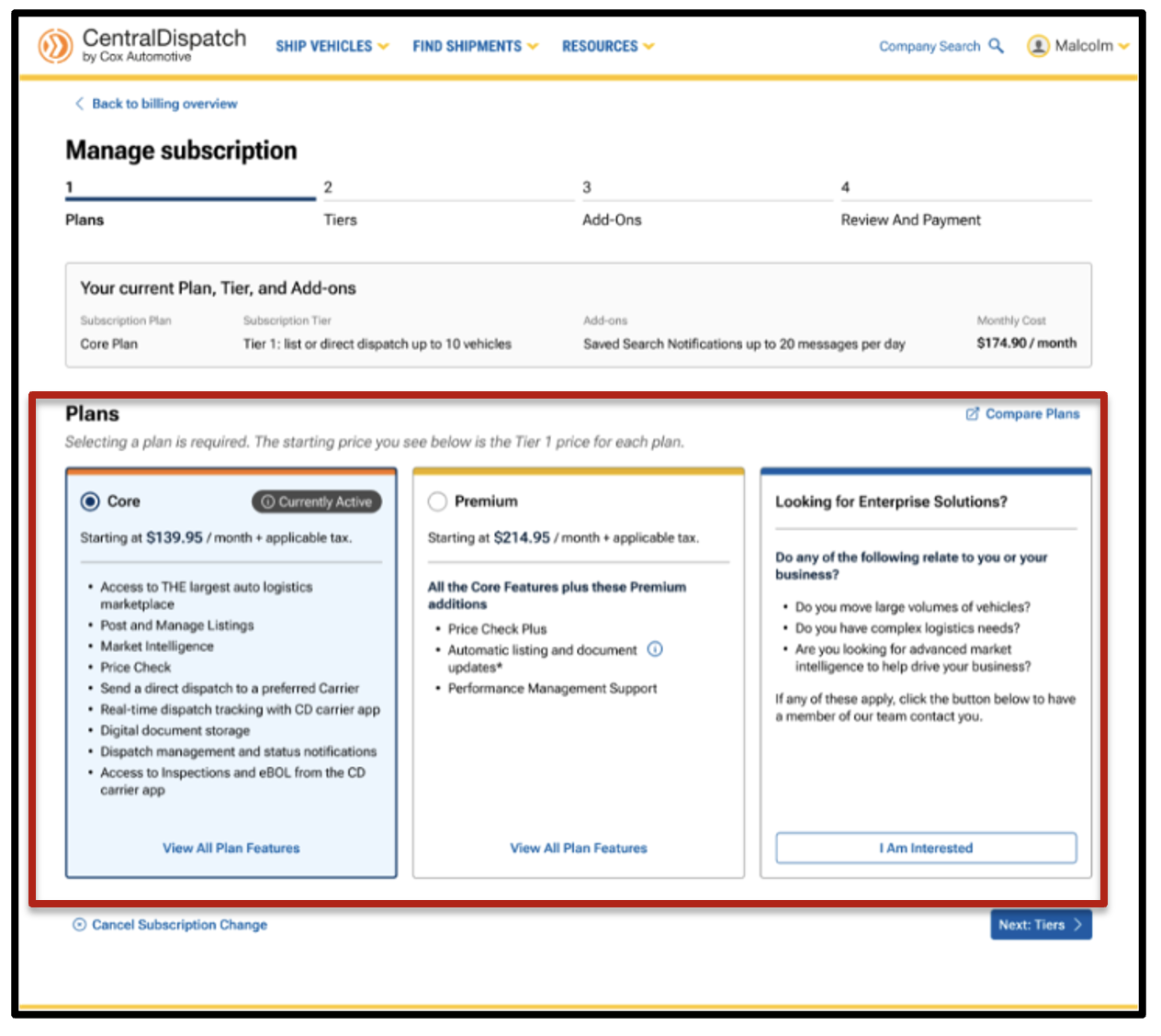
- Customers can move back and forth to adjust selections without starting over, reducing frustration and confusion
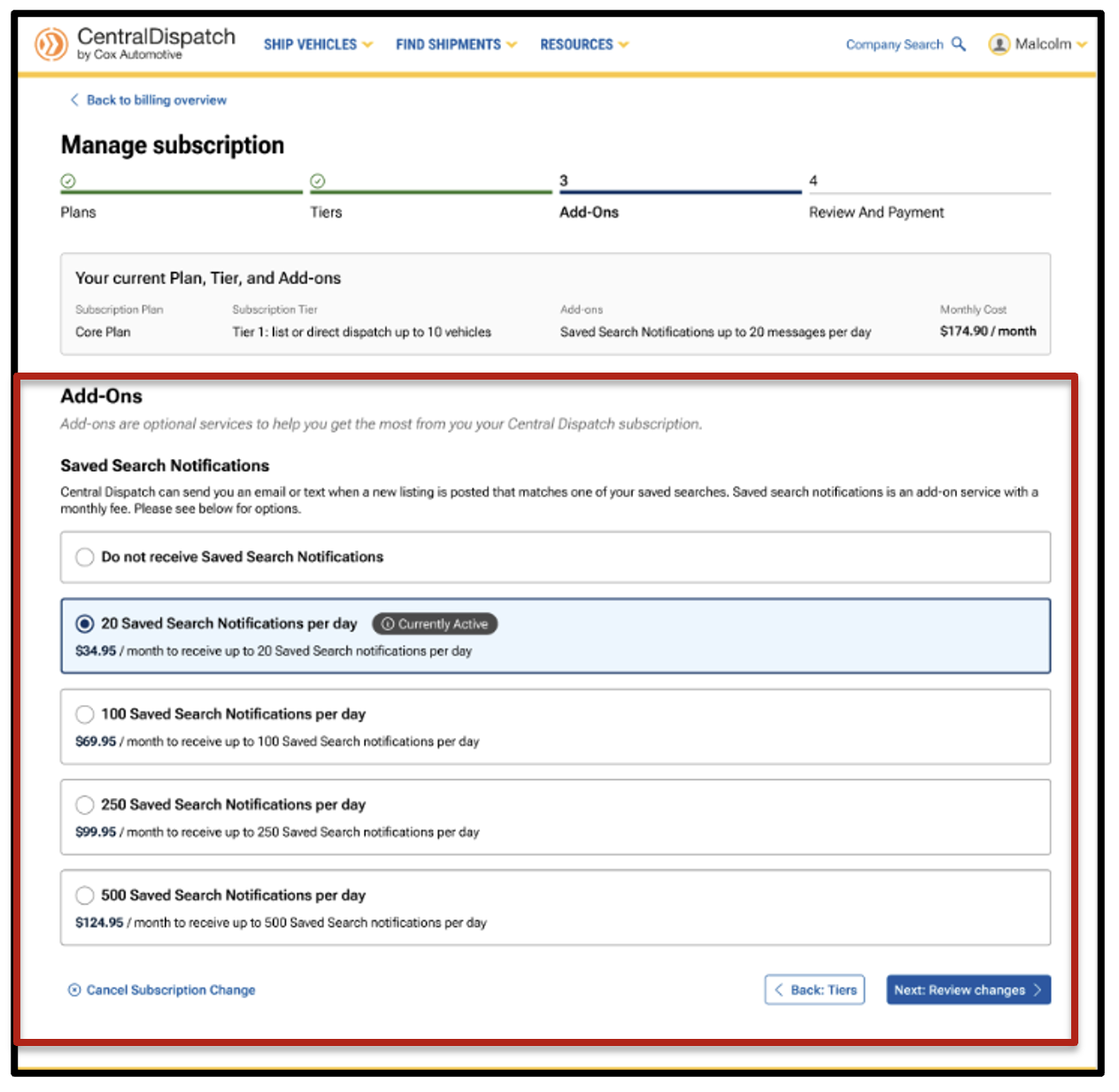
- Choose add-ons
- Customers have clear visibility into available add-ons (such as Saved Search Notifications), with pricing and quantity displayed inline
- The system defaults to current selections with simple opt-in and opt-out options
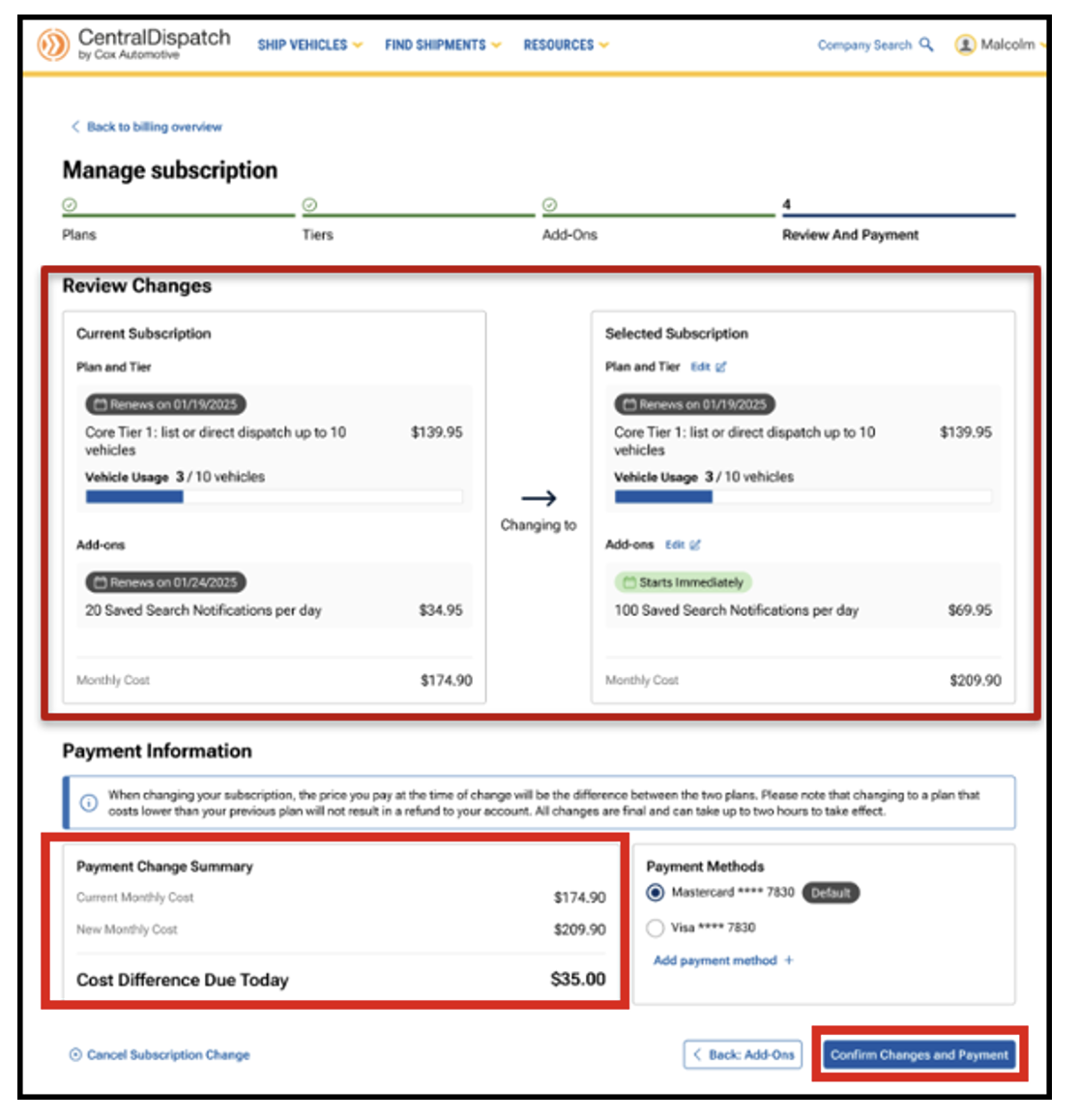
- Review side-by-side comparison of changes and payment information
- Costs, upgrades, and differences due today are shown clearly before checkout, helping customers understand exactly what they’re paying for
- Customers can clearly see their current plan vs. proposed changes before confirming anything
- Payment Information will display the summary of charges based on changes selected. It will also display the Cost Difference Due Today based on the difference between the previous plan and new plan selected.
- NOTE: Cost Difference Due Today does not include past due charges that are due.
- NOTE: Cost Difference Due Today does not include past due charges that are due.
Edit Billing Information
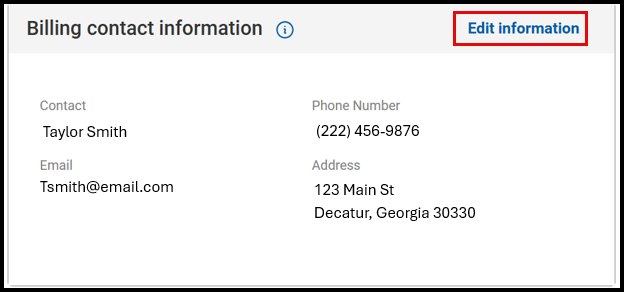
- Click on Edit Information to update billing contact information.
- Result: The Company Profile page will open to the Contacts section and Billing Contact.
- Click on Edit Information to update Billing Contact, MFA authentication will be required.
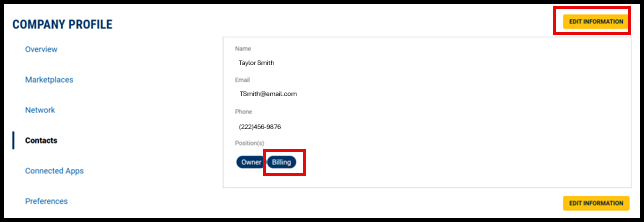
- Click on Edit Information to update Billing Contact, MFA authentication will be required.
Payment Methods and Billing Contact Information
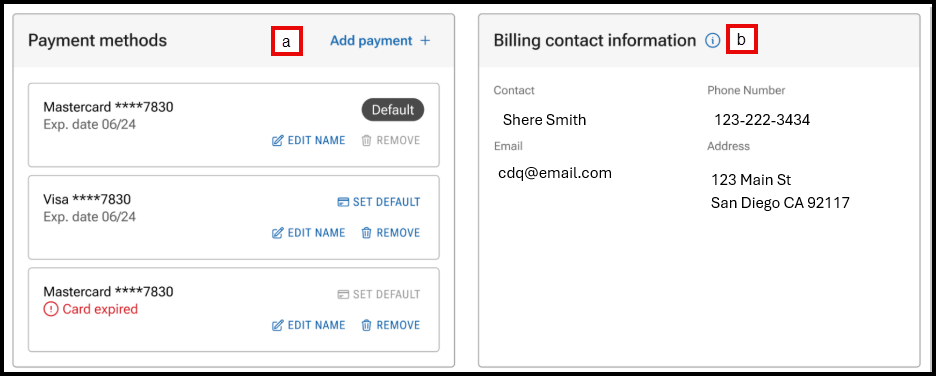
- Manage payment methods including setting a default card, adding or removing a card.
- Click on Edit Information to update billing contact information.
- Result: The Company Profile page will open to the Contacts section and Billing Contact.
Upcoming Charges and Recent Transactions
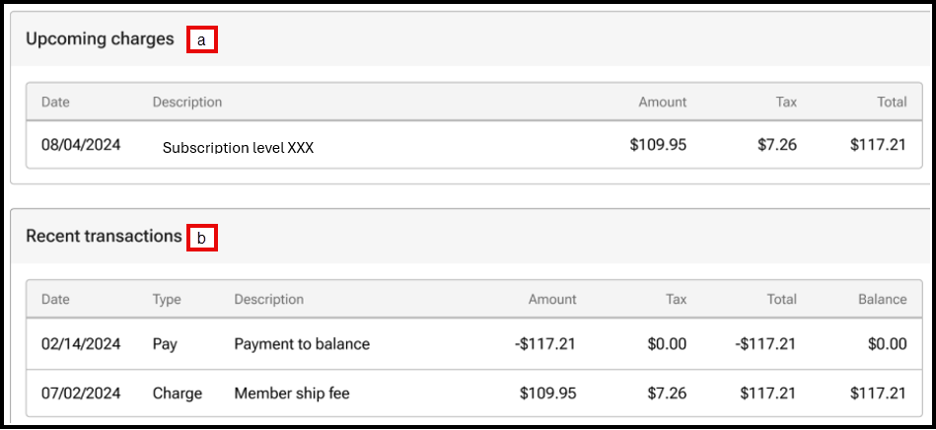
- View upcoming charges.
- View the most recent five transactions, users can view additional transactions under the History tab on the Billing page.
Billing History Tab
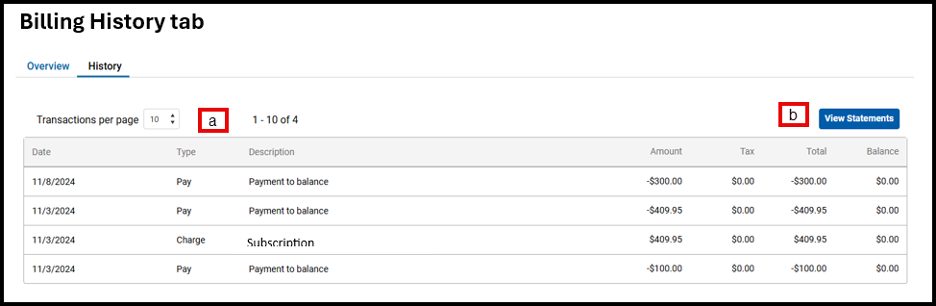
- View previous transactions, select the number of transactions per page.
- Click View Statement to view statements for previous months.
FAQs
Yes. The new experience is designed to be self‑service. Customers can upgrade or downgrade on their own using the step‑by‑step process and see all changes clearly before confirming.
No. Nothing is applied until the customer confirms on the final Review and Payment screen.
Yes. The final review page shows a side‑by‑side comparison of the current subscription and the new selection, including plans, tiers, add‑ons, and cost.
Yes. Customers can move back to earlier steps (Plans, Tiers, or Add‑Ons) and make changes without starting over.
Add‑ons are shown as separate, optional selections with pricing clearly displayed. Customers can opt in or opt out and adjust quantities as needed before confirming.
Yes. The system clearly shows:
- The new monthly cost
- Any cost difference due today
- When changes take effect
There are no surprises at checkout.
Downgrades follow the same guided process. Customers can see the impact of the downgrade, including feature changes and pricing, before confirming.
Upgrades take effect immediately, and any pricing difference due today is shown on the final screen before confirmation. Downgrades take effect on the next billing cycle.
The guided layout and plan comparisons help customers understand their options. Agents can also walk them through the screens, and customers can review and change selections before confirming.
The new process is designed to be clearer, easier to follow, and more transparent—helping customers feel confident with making changes while reducing frustration and support calls.
Overview:
Drivers can view loads and perform inspections on vehicles for loads assigned to them when the listing does not have a VIN.
Users will be able to view assigned loads without a VIN and associate a VIN with it using the CD Mobile App in order to complete an inspection.
Why is it important to add a VIN and complete an inspection?
- Provides real-time tracking to the shipper, reducing the need to call or email with updates
- Provides eBOL at pickup and delivery, reducing the risk for both carriers and shippers
- Streamlines the app process
Identifying loads with missing VINs
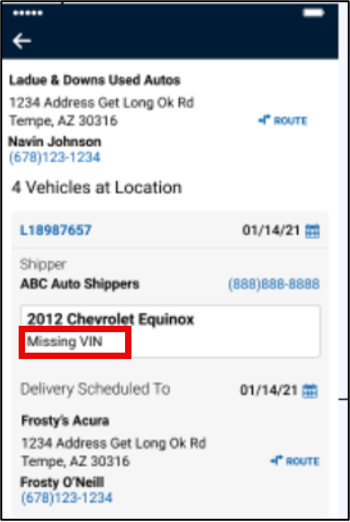
- Assigned loads without VINs will have a tag on the home page indicating Missing VIN.
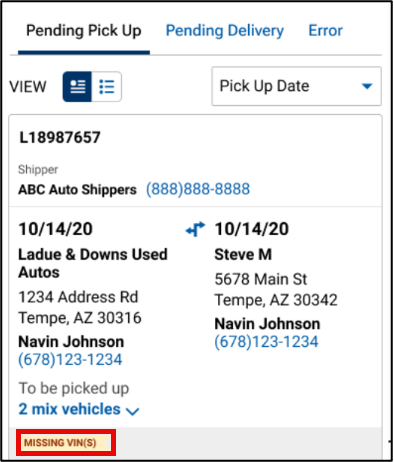
- When clicking on the load, the Year, Make, and Model (YMM) and the Missing VIN tag will be displayed on the Load Details page.
Starting the Inspection Process
- Begin by selecting START INSPECTION from the bottom of any screen.
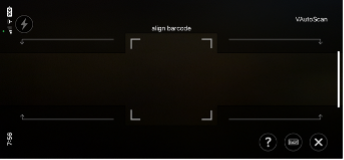
- Scan the VIN on the vehicle or choose the keyboard icon to enter the VIN.
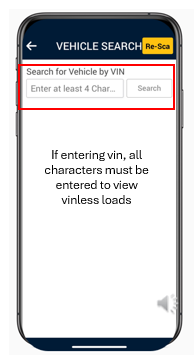
- For the VIN-less load process, when entering the VIN all characters must be entered.
Matching a Load with a VIN
The app will search for a matching VIN, and if not found, the app will decode the scanned VIN to determine YMM of the vehicle and search for VIN-less loads that match the YMM of the scanned VIN.
Possible results:
1. If the scanned VIN and decoded YMM match an assigned load:
- A list of assigned VIN-less loads that match the YMM will display.
- Users can confirm details for the correct load, such as pickup and delivery locations, and click Associate VIN with this vehicle? to merge the VIN with the record and begin the inspection.
Note: Vehicles with make or model names that do not match the VIN decoding results exactly (ex: Chevy vs. Chevrolet) won’t appear in the decoded matches.
- Carriers can select View all loads with missing VINs for a full list VIN-less vehicles.
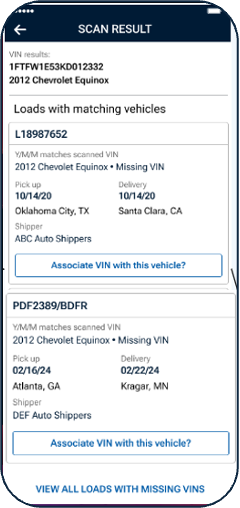
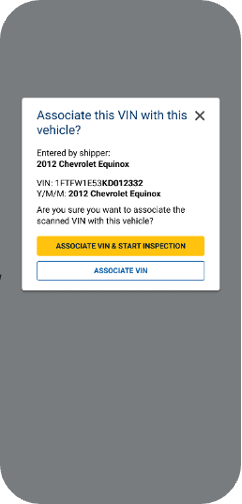
- Once the load is found, tap on Associate VIN with this vehicle? under the selected vehicle.
- A confirmation screen will appear to confirm the association of the VIN with the vehicle and then the user can continue with the inspection as normal.
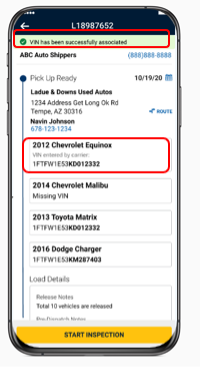
- A message will display that the VIN has been successfully associated with the load.
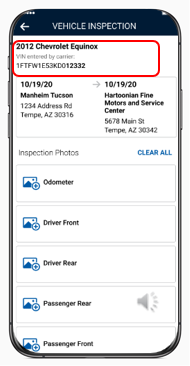
- A tag will appear above the VIN stating, VIN entered by carrier.
- The tag will appear above the VIN throughout the mobile app and on the eBOL.
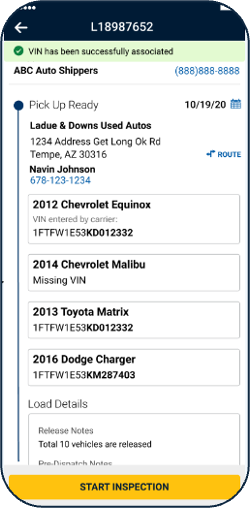
- The tag will appear above the VIN throughout the mobile app and on the eBOL.
2. If the scanned VIN does not match the YMM of any assigned loads:
- If there are no assigned vehicles matching the decoded YMM, an error message will appear.
- A list of loads with missing VINs will be displayed for review.
- Users can select a load with a missing VIN to associate with the scanned VIN by clicking the Associate VIN with this vehicle? button under the selected load.
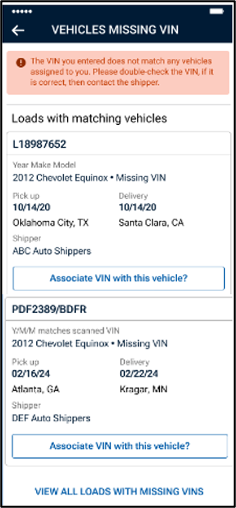
- If a vehicle is selected to associate the VIN, the YMM entered by the shipper and the selected YMM will display, and the user will be asked to confirm by tapping one of the Associate VIN button.
- In the example below, the shipper entered a vehicle year of 2012, and the vehicle selected has a vehicle year of 2017.
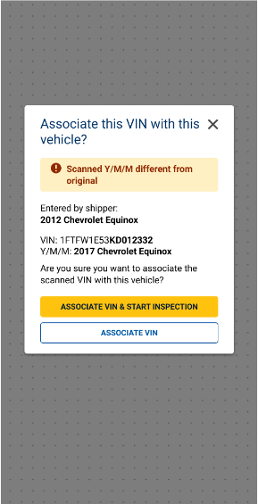
- In the example below, the shipper entered a vehicle year of 2012, and the vehicle selected has a vehicle year of 2017.
NOTE: Once a VIN has been associated with a load it cannot be unassociated.
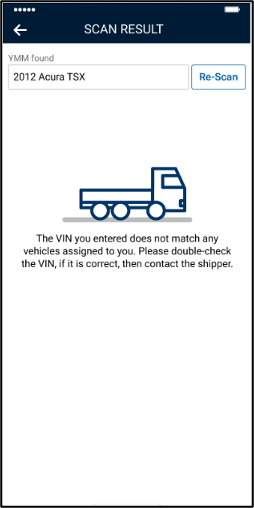
3. If there are no assigned vehicles matching the decoded YMM and no VIN-less loads:
- The app will display the following error message will display the YMM of the scanned VIN and request the carrier to call the shipper.
Viewing Manually Added VIN in app and on eBOL
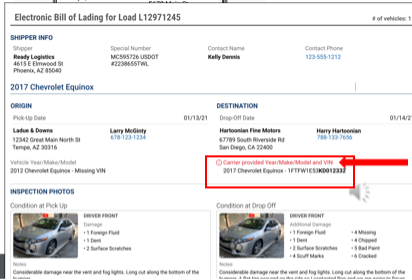
FAQs
Q: How can a user tell if a VIN was manually added by the carrier?
- To indicate whether the VIN was provided by the shipper or added manually, “VIN entered by carrier” will appear throughout the app and on the eBOL for any VINs entered by a carrier.
Q: Where does VIN populate after it is manually added by the carrier?
- The VIN will appear throughout the dispatch record in the app and on the eBOL. It will not populate on any shipper-facing listing or dispatch pages within the Central Dispatch platform.
Q: What if a carrier encounters multiple, identical vehicles missing a VIN?
- The carrier can select the best vehicle match after reviewing all of the load information, as it is only used for the inspection process and is not permanently linked to the vehicle in any way.
- The carrier may reach out to the shipper to confirm a unique identifier on the vehicle such as the license plate or lot number, if needed.
Q: Can a user remove the VIN from a vehicle after manually adding it?
- The VIN cannot be removed after it is added. To ensure accuracy, users will be asked to confirm before finalizing their selection.
Q: If a pickup inspection was not completed, can a carrier still add a VIN to complete a delivery inspection?
- Yes, carriers can follow the same steps to complete a delivery inspection.
Q: What happens if the app is offline during an inspection?
- Users will see a message in the top left corner showing their device is offline.
- The app will bypass VIN decoding and default to showing all vehicles with a missing VIN.
- Carriers can still complete the vehicle inspection but will not be able to submit it until their device is back online (current functionality).
Central Dispatch got some major enhancements in 2025, but there’s still more to come
For decades, Central Dispatch has helped customers ship vehicles profitably on the largest auto transportation marketplace. Now we’re helping them ship with even more profitably with the most streamlined marketplace!
From all-new tools to big marketplace updates, you can now execute every step of the transportation process more efficiently than ever, all on one centralized and easy-to-use platform.
New API Integrations create seamless connections to third-party technology providers, so you conduct your business on your preferred software. An enhanced dispatch experience delivers a more streamlined, modern interface capable of managing any number of loads. And our continued commitment to security in features like the FMCSA verification checklist, multi-factor authentication, user management, plus our marketplace integrity team, we’re dedicated to proactively combating fraud and providing tools to help you avoid bad actors, while putting up roadblocks to keep them out of our platform.
New enhancements like these don’t just help you transport vehicles on Central Dispatch faster, easier, and more profitably — they future proof your business, helping you stay flexible as new challenges and changes take place in the industry.
But we’re not stopping there. We’re continuing to listen to your feedback, and using it to deliver even more valuable enhancements in 2026!
Load Board Enhancements: We’ve streamlined the load board to eliminate older listings after 30 days, ensuring “ready to move” loads are prioritized for carriers and helping shippers quickly attract the right carriers.
Vehicle Count Methodology: Each vehicle you post will count toward your tier limit, even if it is part of a multi-vehicle listing or dispatch. This ensures a truly end-to-end process from listing the vehicle, to finding a carrier, to fulfilling the delivery. For more details on how this impacts your account, read the announcement post here.
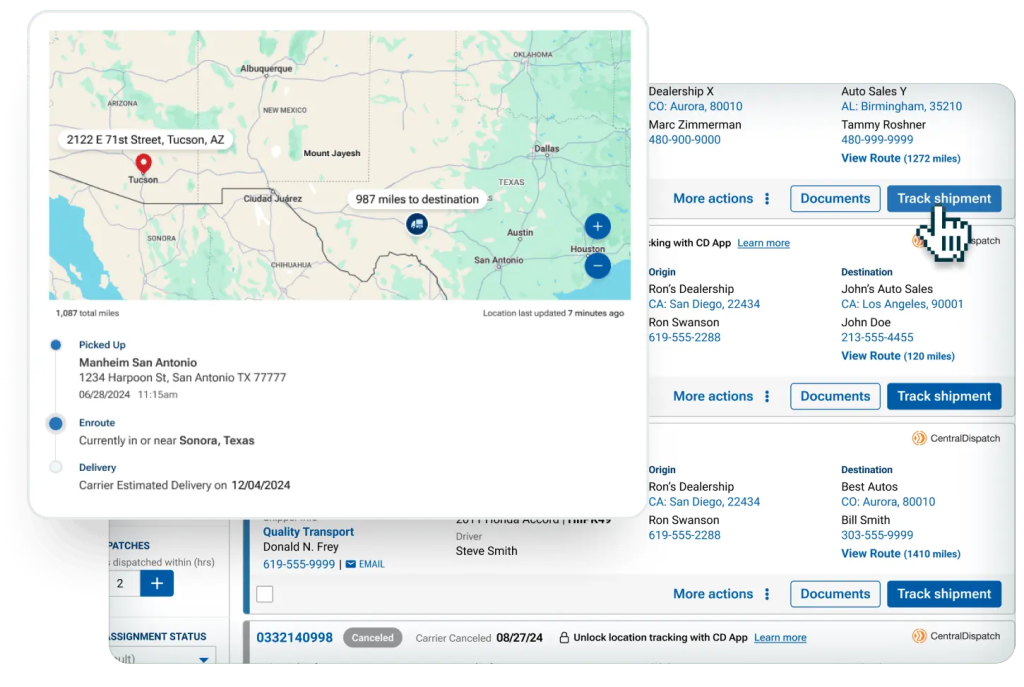
Real-Time Tracking: Shippers are now able to receive live location and status updates delivered straight to their devices, including GPS location, ETA, eBOL information, and more, as long as carriers are using the Central Dispatch app. This allows shippers to easily stay on top of shipments and streamline communication, while saving carriers time by not needing to provide manual status updates. It’s the best way to strengthen relationships between shippers and carriers, and maximize confidence when transporting vehicles.
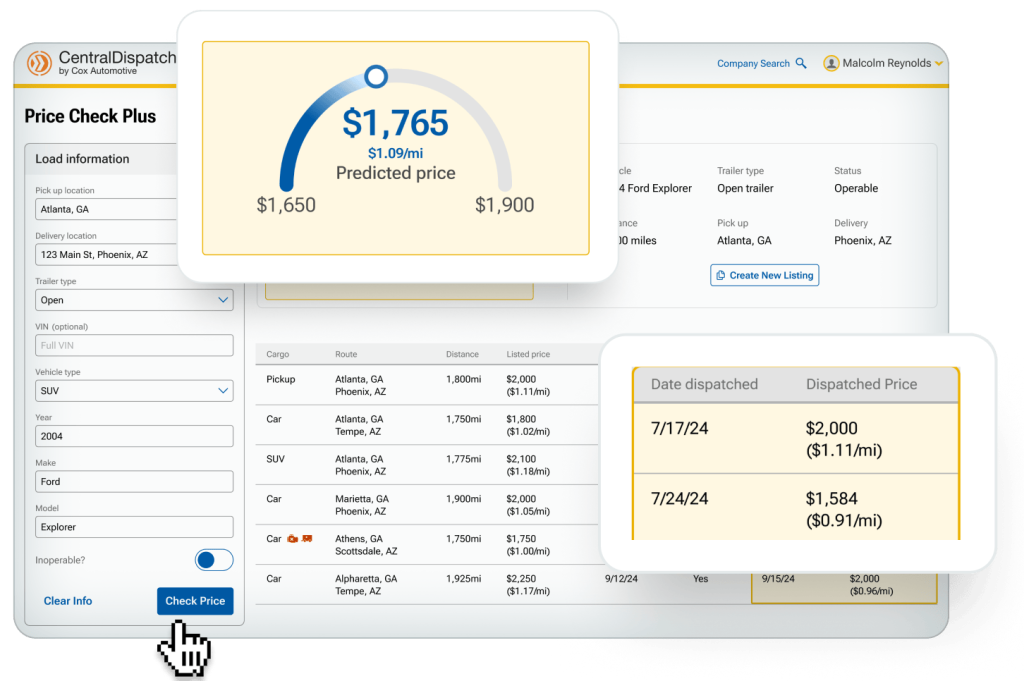
Price Check and Price Check Plus: Shippers and carriers can utilize insights using Price Check to ensure a fair price for each individual vehicle. For those looking for more robust pricing insights, Price Check Plus uses AI-driven data to predict the optimal price for your load so you can maximize your profitability. Get access to not only listed prices, dates and dispatched information for previous loads, but final pricing and date dispatched details to make more informed decisions, all powered by our Market Intelligence transportation data. Learn more about Price Check and Price Check Plus here.
Central Dispatch Premium: Ship with more power and profit than ever before! Central Dispatch Premium gives you all the same features as a core plan, plus best-in-class transportation tools and unmatched professional support. Maximize vehicles’ profitability with Price Check Plus. Streamline your process with a suite of APIs. Coming soon, dispatch directly to your preferred partners with Preferred Carrier offers. And uncover new opportunities to drive efficiency and profit with Performance Management. Learn more about Central Dispatch Premium and all of our plan options!
And, don’t miss the updates we’re rolling out in 2025:
Enhanced Transactional Ratings: You can now choose when your review is published, giving you the confidence to share your experience. Selecting “Publish Later” means your review will only be publicly posted after your partner has also submitted their rating, or the 14-day review window passes, making it easier to provide honest feedback, and helping foster more transparent partnerships.
Coming soon: Payment Facilitation: Handle all payments and transactions without having to leave the Central Dispatch platform.
Pricing decisions are getting even easier.
Shippers can optimize rate decisions, and carriers get the best rate for every load with AI-powered recommendations and detailed marketplace data powered by our Market Intelligence transportation data.
Want to learn more? Watch our video demo and check out our user guide on Price Check Plus.
Click on Account name and select Company Profile
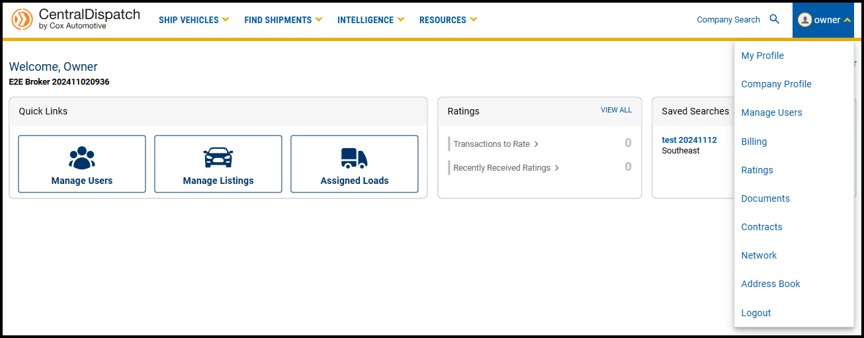
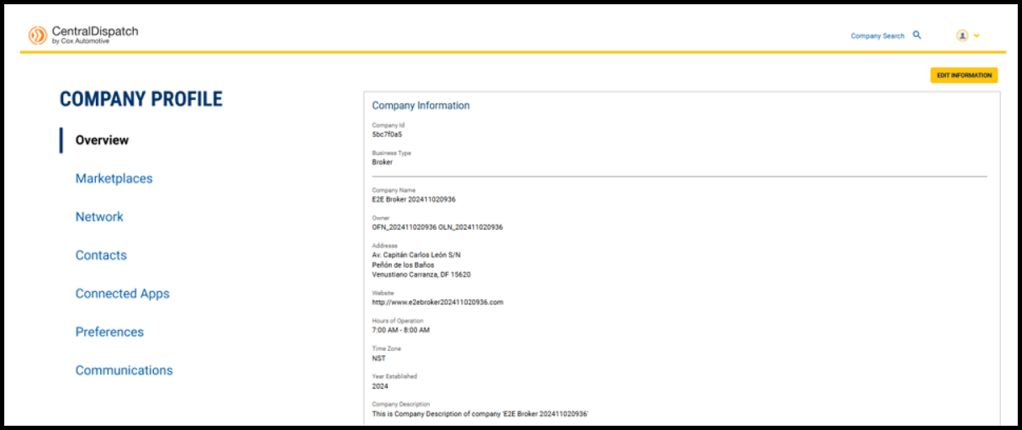
Company Profile contains overview information as well as tabs for:
- Marketplaces: will display public and private marketplaces for account
- Network: manage preferred company network and blocked companies
- Contacts: add and manage contact for your account
- Connected Apps: manage connected apps if applicable
- Preferences: choose how businesses search your company
- Communications: manage communication preferences selected for carrier notifications, may also include other notifications depending on marketplace
Users with roles of Owner and Admin can edit certain information after a multi-factor authentication
Overview
The Overview page includes:
- Company Information
- Contact Information for company
- Liability insurance information if applicable to account type
- Authority information if applicable to account type
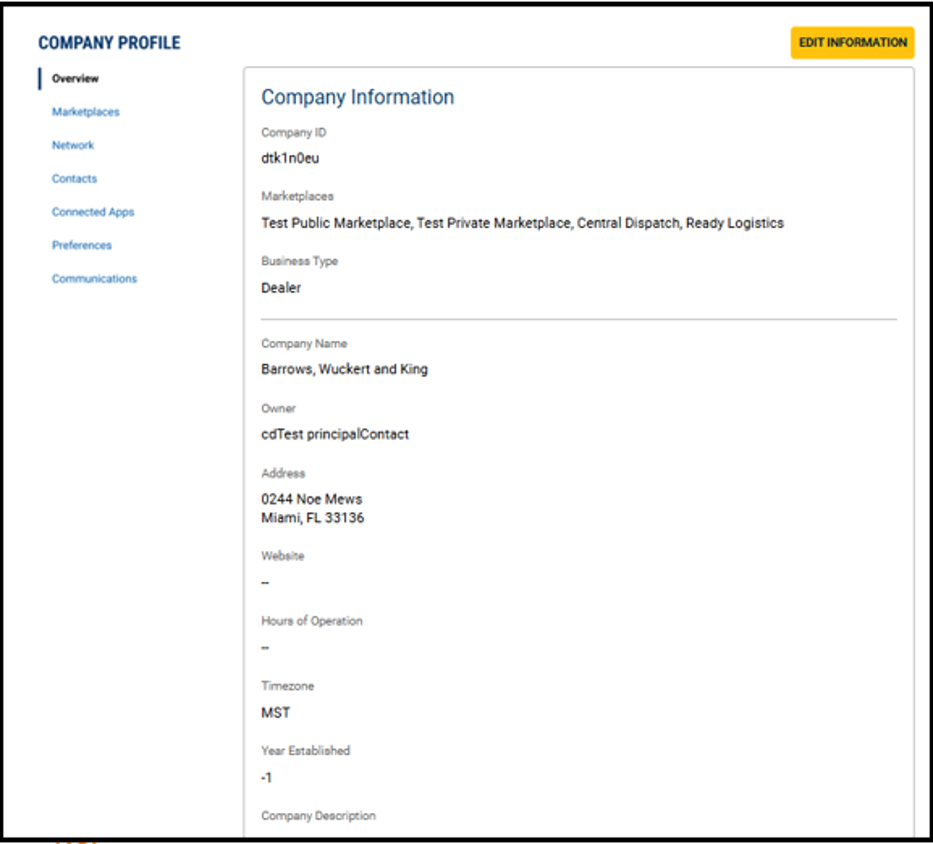
Edit Information
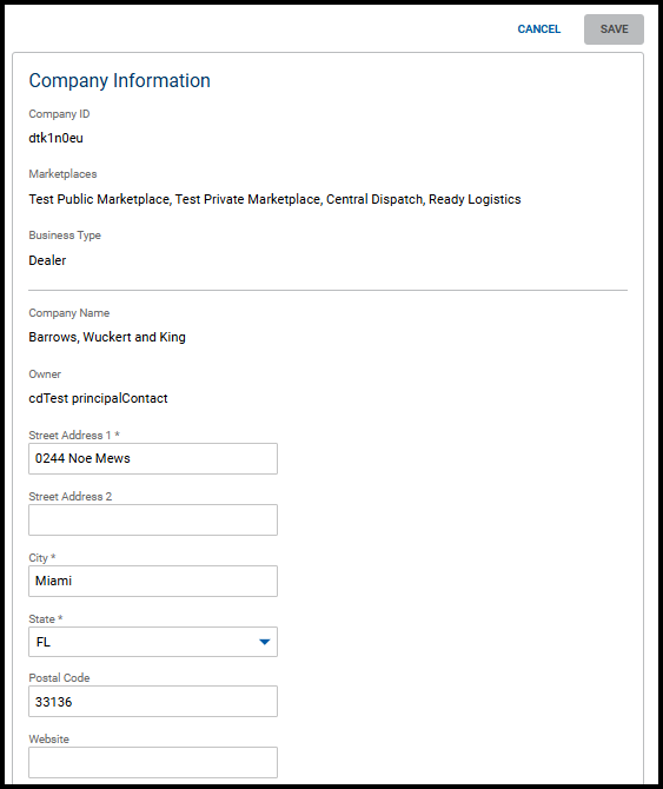
For account security, users with the Owner and Admin role will need to complete multi-factor authentication after clicking the Edit Information button.
Fields that can be updated will open
Some information such as company name, insurance, and authority can be updated by Central Dispatch team only
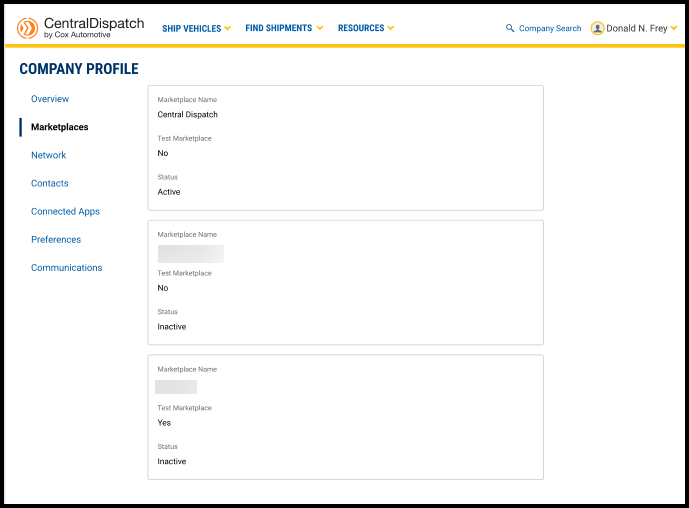
Marketplaces
Marketplaces page is read-only and display the public and private marketplaces your account is associated with
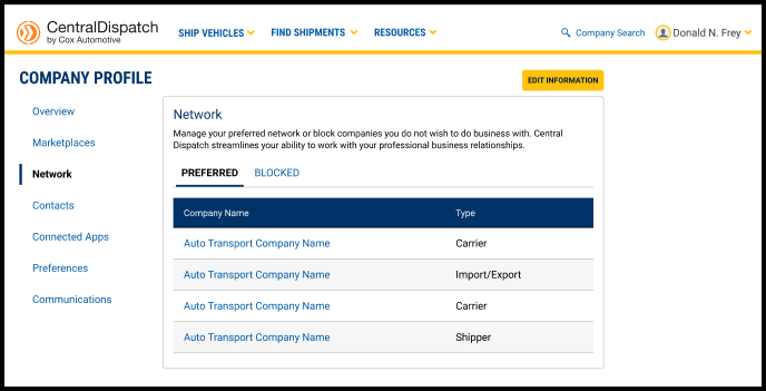
Network
The Network page allows you to manage your preferred network of companies or block companies you do not want to do business with
Requires a multi-factor authentication by Owner or Admin role to Edit Information
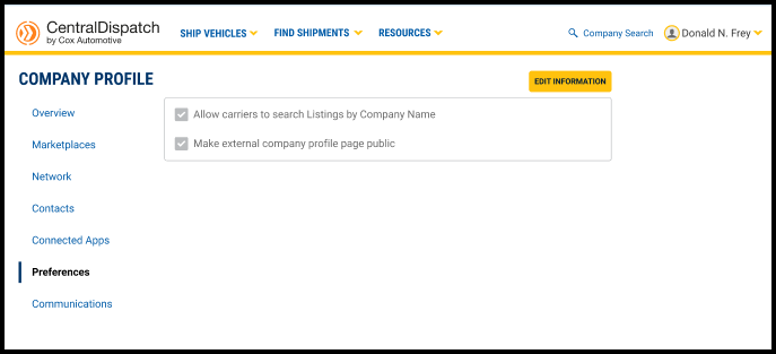
Preferences
Preferences gives you the control of how other businesses can find your company
Requires a multi-factor authentication by Owner or Admin role to Edit Information
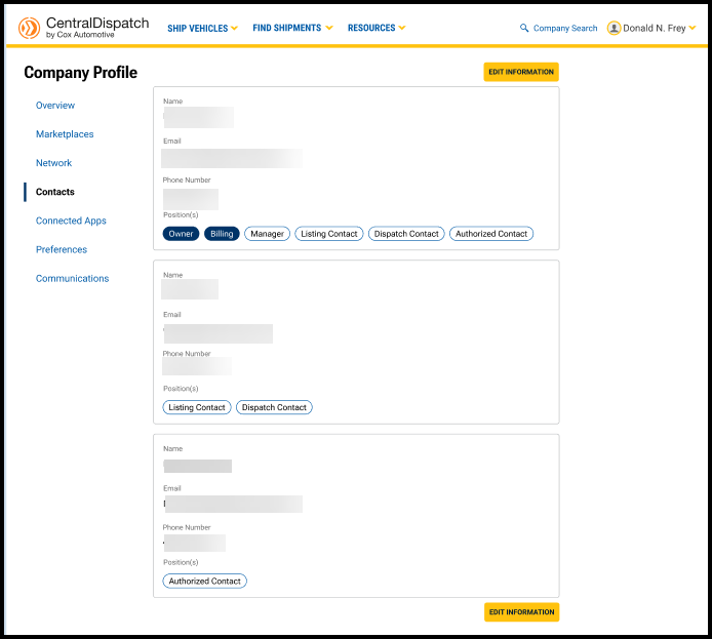
Contacts
Contacts page includes information for positions for your business. Positions include:
- Owner
- Billing
- Manager
- Listings Contact
- Dispatch Contact
- Authorized Contact
The Owner, Billing, and Listing contacts are populated from information entered during the application process. The Dispatch role does NOT auto-assign by default, so you’ll need to manually add the correct contact for this role
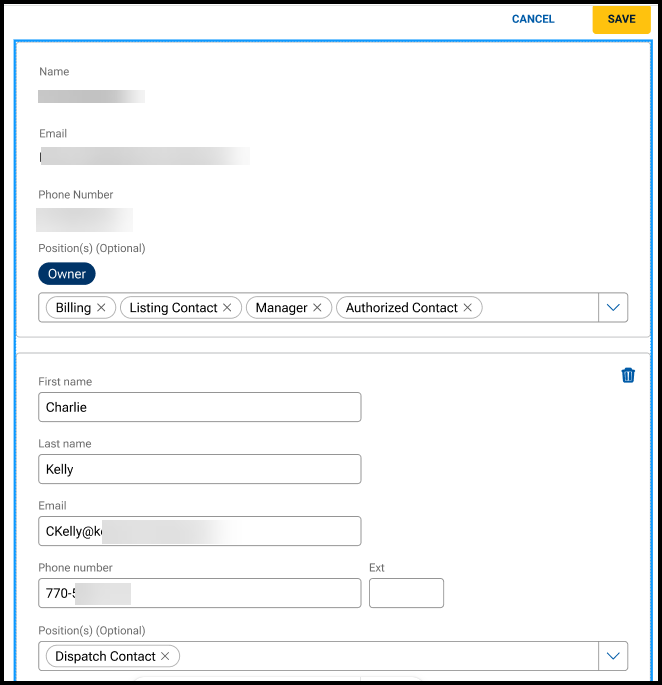
The Owner contact cannot be changed through self-service
The Billing contact can be updated from the Billing page
Contacts can have multiple positions
A Listing and a Dispatch contact is required for shipper accounts and the system will not allow more than one Listing or Dispatch contact
A group email can be added for a contact such as Dispatch Contact
Requires a multi-factor authentication by Owner or Admin role to Edit Information
Important Information about Contacts and Manage Users:
- Contacts do not contain information used for the multi-factor authentication process; this information is only available to the user in their My Profile
- Contacts does not replace Manager Users; users must be added to Manage Users to manage their access to the Central Dispatch account and set up their My Profile
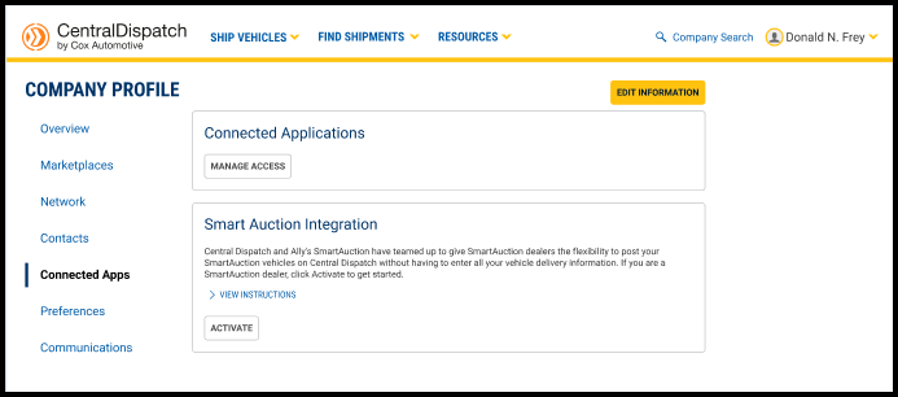
Connected Apps
Connected Apps allows you to manage access to any connected apps, if applicable
- Requires multi-factor authentication to Edit Information
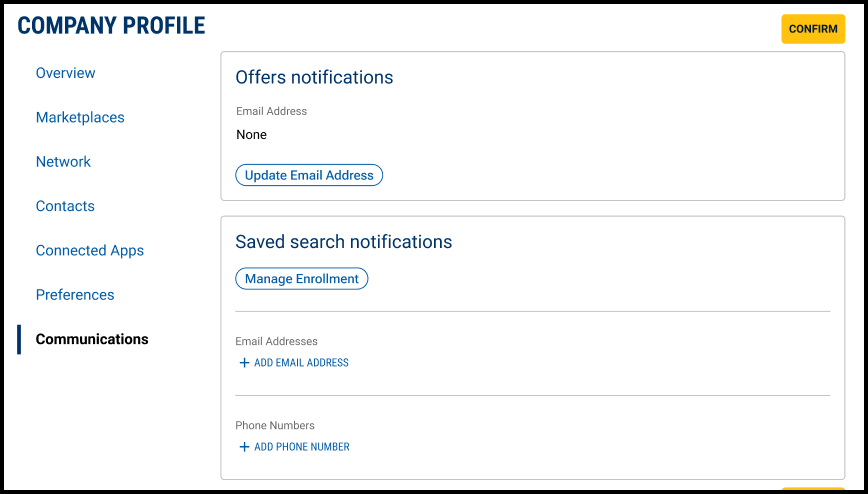
Communications
Communications manage communication preferences selected for carrier notifications
- May also include other notifications depending on marketplace
- Requires multi-factor authentication to Edit Information
Price Check and Price Check Plus offers carriers and shippers pricing insights for transportation costs to empower decision making and maximize profitability.
Price Check – Generates pricing information based on vehicle and location information
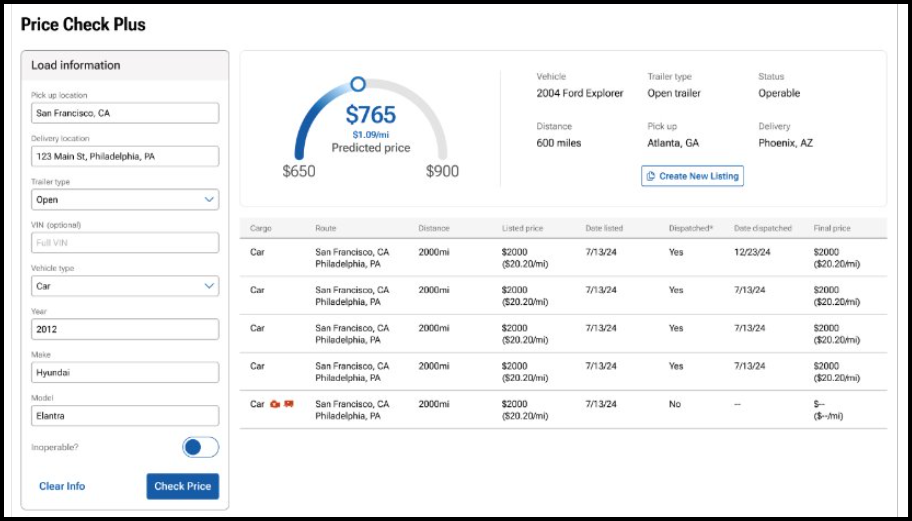
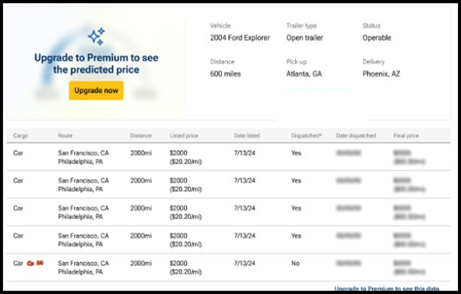
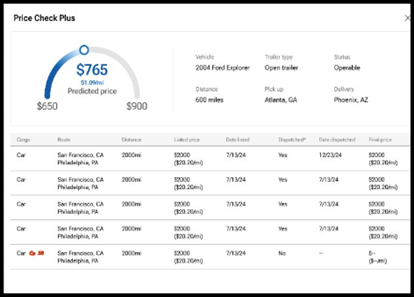
Price Check Plus – Builds on the information offered in Price Check and includes the date and dispatched price as well as a predictive dispatch price within an upper and lower band
All clients can access at any time from the log-in home page by clicking on the Intelligence dropdown
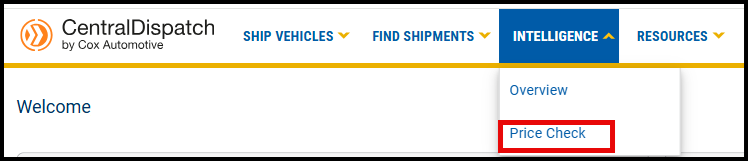
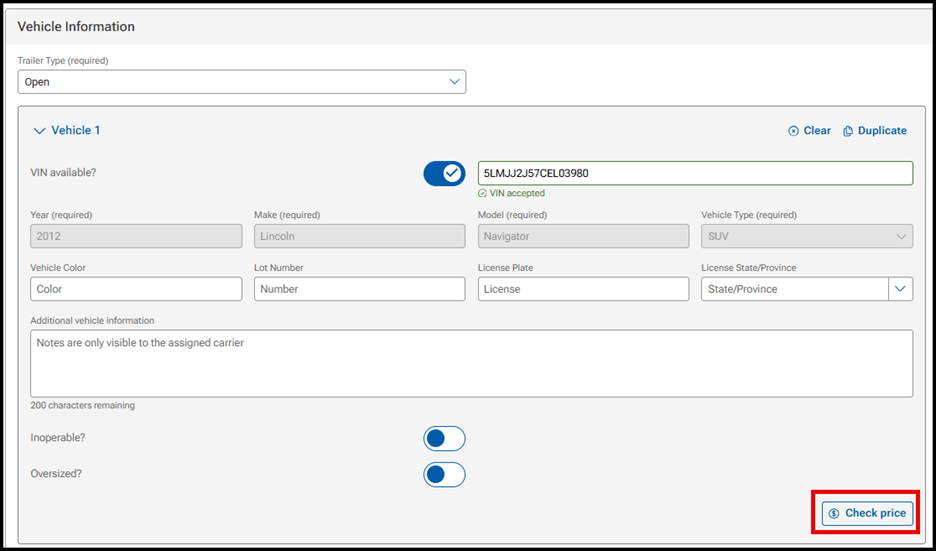
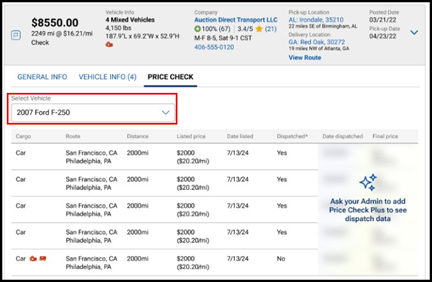
When searching for vehicles on the Search Vehicles page, click on the drop down on the dispatch card and the Price Check

For Shippers on the Create Listing page, click on Check price under the Vehicle Information section
How Price Check and Price Check Plus Work
When accessing Price Check from the drop down on the Intelligence tab:
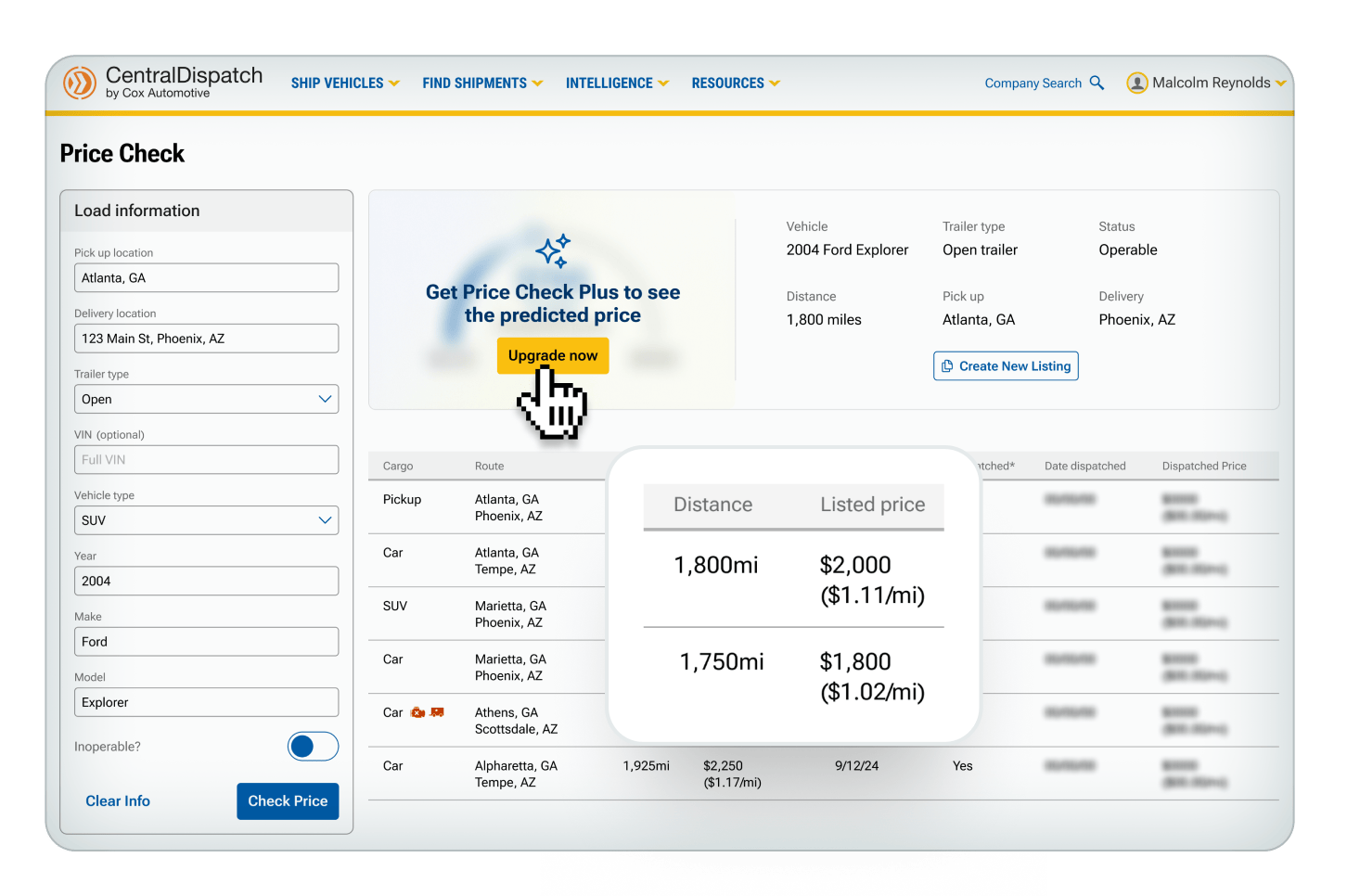
- Enter load information in the filters on the left side of screen to view pricing information for comparable loads
- For shippers, there will be a link to Create New Listing to easily create a listing from the information populated in the filters
- Note: Users with the Driver role will not have access to Price Check information
- Note: Users with the Driver role will not have access to Price Check information
View of Price Check from the Intelligence tab for an owner role
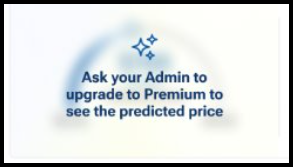
If user is not an owner role, a message will appear to ask admin to sign up
View of Price Check Plus from the Intelligence tab for subscribers
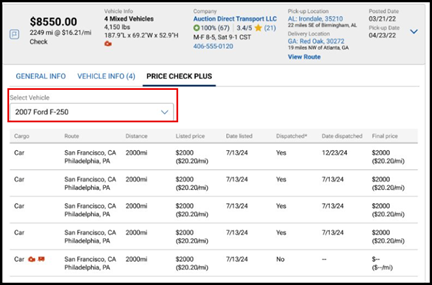
View from Search Vehicles
When displaying Price Check or Price Check Plus for multi-vehicle loads, there is a drop down to select the vehicle in the load to display for both Price Check and Price Check Plus
View from Create Listings
A slide out box will appear when clicking on the Check Price button in Create Listings
Value of Price Check Plus
Price Check Plus is designed to help you maximize profitability and accelerate your speed to transport.
The Predicted Price is one of the most valuable tools available in Price Check Plus and is built on industry-leading AI to provide real-time data reflecting current market trends.
The high and low price represent upper and lower bounds for what would be considered a reasonable price for the listing based on historical trends.
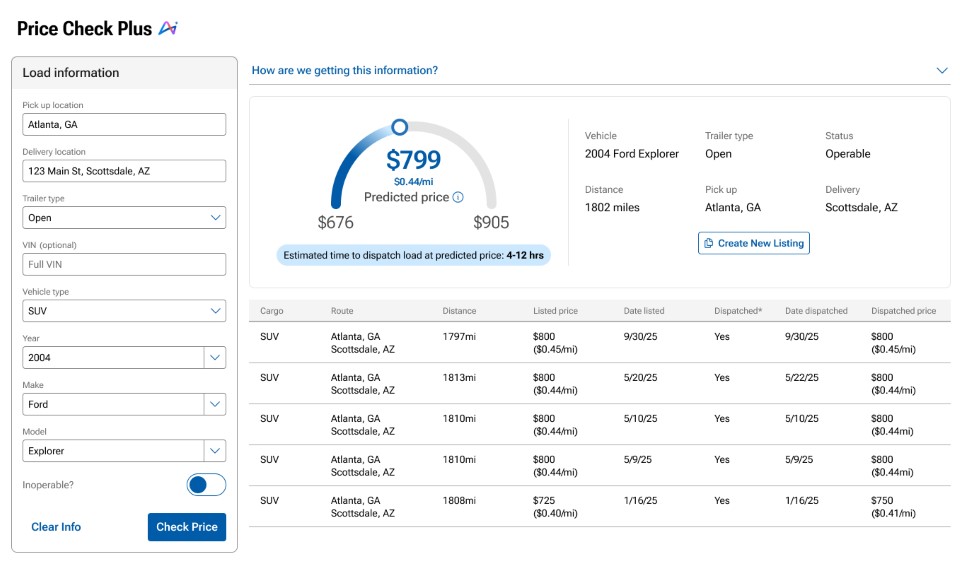
Use the predicted price along with the low range and the high range to make decisions that is best for your company.
- For a shipper: choose a price closer to the upper or lower bands depending on how fast you need the vehicle to move.
- For a carrier: review the price in relation to the upper and lower bands to determine how quickly you may need to act if you are interested in transporting.
The Estimated Time To Dispatch is the estimated time for a listing posted at the predicted price to get dispatched to a carrier.
The time to dispatch is built from the same AI model as the predictive price.
If the shipper needs to it to move it faster, the price can be increased.
- The estimated time to dispatch is not able to predict anything over 36 hours.
Use the Dispatch Date and Dispatched Price on the comparable loads to see if the negotiated rate was different than the listing and see how long it took to get dispatched at the listed rate.
The Transactional Ratings system from Central Dispatch lets you leave in-depth reviews about what it was like to work with a certain shipper or carrier on our platform.
You can rate a business overall and in three distinct categories for each job they perform. You can write reviews describing your experience in more detail, and even reply to comments written about your business.
Today we’ll show you how you can use this new rating system to give helpful, honest feedback, so that you and others can make better partnering decisions and grow your business.
The “Overview” page gives you a general idea of how you’re being rated on Central Dispatch.
You’ll see your company information, your current overall rating (calculated by average), and reviews of your business that have been marked as “most helpful” by other users.
Under “Average Detail Ratings” you’ll see your current rating for each distinct Transactional Ratings category — timeliness, communication, and documentation. Like your overall rating, these are calculated by average. Hover over the “i” for more information on how we define each category.
Scroll through the “Most Helpful Reviews,” to find out which reviews of your business are getting the most hits, and exactly what your partners are saying about you.
View how they’ve rated you in each category, their written review, how many total reviews they’ve left on the site, and how many other users have marked their review as “helpful.”
The Overview page also gives you a quick link to rate your recent transactions (under “Your Connection”) as well as a link to view all of your business’ reviews in more detail, here near the Helpful Reviews.
You can also get there by simply clicking the “All Ratings” tab near the top of the dashboard.
Ratings
On the “All Ratings” page, you’ll first see a visual breakdown of your current overall rating, and a complete list of every review of your business.
You can sort this list by the number of stars attached to each review, to quickly get a clear idea of what people liked about working with you, and what problems may have come up during a job.
You also have the option to reply to any review of your business. Please remember to be fair and courteous when replying to a review. Every reply goes through a 72-hour review period, to make sure our content policy is being followed.
Pending
The “Pending” page is where you’ll rate and review the businesses you’ve worked with in the past 60 days. After 60 days, any pending transaction ratings you have will disappear.
You can rate both completed and canceled transactions that were accepted by a partner. This ensures every partner on our platform is held accountable for their performance for jobs they finished — and for jobs they didn’t.
On the page, you’ll see the company’s name, order ID, and some more specific information about each job. To begin rating a transaction, simply give it an overall rating of 1-5 stars. This will bring up an expanded menu, where you can rate a shipper or carrier on their timeliness, communication, and documentation.
Note that your ratings for each category do not impact the overall rating. Also note that reviews cannot be edited after they’re submitted and star ratings go live on the website the moment you leave them. So it’s very important to understand what to be thinking about for each category before you rate. Let’s go over those in more detail.
For overall rating, youshould think about the general experience working with this person — not just the outcome of the job. Would you feel comfortable doing business with them again? Would you recommend them to others?
Timeliness refers to how closely they met timing expectations outlined in your contract for pickup, delivery, and any other checkpoints. Did they complete delivery or pickup within 72 hours of the estimated time? Were they late? If so, how late?
Your communication rating should consider how professional and responsive a partner was during a job. Did they promptly communicate information like updates, changes, and delays? Did you ever have trouble getting in touch with them?
Documentation includes the completion and accuracy of all job documents, such as eBOL, insurance information, transit forms, and invoices. Was everything filled out correctly? Did paperwork arrive late?
To give even more detailed feedback, leave a short written review describing your experience. What specifically did they do well? What kinds of problems, if any, did you run into?
Leaving a 1-2 star rating for a transaction will prompt you to leave a written review, to encourage responsible use of a negative rating.
You’ll also be prompted to reach out directly to the other party. So if you think any disputes can be solved privately, be sure to take advantage of this feature before posting.
However, it’s important to note that leaving a written review, and rating users in each of the three categories, are both optional. You can always just leave one overall rating if you’d like.
But we highly recommend going the extra mile. It helps everyone identify if a certain carrier or shipper is right for them, and gives other users a more complete picture of your business practices.
Well, that’s all for now. Thanks for taking a few minutes with us to discuss our new transactional ratings system. As always, please reach out to us with any further questions.
