

The all-new Central Dispatch user management feature lets business owners give employees their own personal Central Dispatch logins.
Account owners will now have more control over how they run their business on Central Dispatch. They’ll decide which employees or contractors can access certain features, decide who gets to view sensitive information, and eliminate the risks of sharing credentials of a single, universal login.
To access the Manage Users page, click your name from any page and select Manage Users from the account dropdown. Only users with the role of Owner, Admin, or Member Manager can access the Manage Users page.
Here, you’ll see your company name in the top left, along with a list of all your organization members who are active Central Dispatch users in the active tab.
You’ll also see their assigned role, contact information, and some actions you can take as the account owner.
Adding new users is easy. Just click the yellow “Add Users” button at the top right of your screen. This will bring up a window where you’ll enter their email and select their role. Read the descriptions to view permissions associated with the role.
Once you have their information entered, hit “Add User,” and an invitation will be sent out to the email address you entered. Members of your team will need to accept the invite before becoming active users.
To view users who you’ve invited that have yet to accept, go to the “Pending” tab. Here you can see the date you sent out the invite, and resend or cancel the invite if necessary.
Remember that the role you assign each team member will impact what they can and can’t do on Central Dispatch.
Drivers and Standard roles can only access and update their own profile, including email address, cell phone number, and username.
While Owners, Admins, and Member Managers are able to add new users and fully manage all other user profiles.
To change a person’s role, click “Edit” here in the Actions column, and select a new role.
To remove a user, simply click the “Remove” button in the Actions column, and click again to confirm the removal in the pop up window.
That’s all for now! We hope you’ll enjoy all the benefits of this new user management feature. As always, please reach out to us with any further questions.
Let’s take a look at what’s new in search. The new search layout allows you to filter and sort live results, all from a single page. We have also reduced the number of clicks. No need to click “search” or “enter” after selecting filters.
Saved searches and filters are found on the listings page. Just click into the saved search to open it. Easily see the saved search you were viewing, along with the number of listings associated with it.
Filters are also available to view for the search. Click the “X” to delete any of the filters, or scroll down the page to any of the filters and then click save. Click the “clear” button to return to a view of all listings.
The browser can be used to manually update listings. Sorting options are at the top of the listings page. And the listing card contains the most important information, including price and price per mile, the vehicle information, company information including ratings, hours of operation and the time zone, and phone number, pickup and delivery information, posted date, and desired pickup date.
And the information is available no matter the size of your screen. Thank you for using Central Dispatch.
Watch Head of Business Lainey Sibble, and Head of Product Eric Schwartz, break down all the enhancements Central Dispatch has implemented this year to create an end-to-end solution that streamlines your core business.
Watch our product leads in this special interview talk about their plans to continuously listen to customer feedback, and develop that feedback into real features that help them solve real challenges.
Watch Head of Business Lainey Sibble explain how Central Dispatch’s new integrations and enhancements help you do all your transportation work more efficiently in one place!
Head of Business, Lainey Sibble and Head of Product, Eric Schwartz, explain all the new features Central Dispatch has rolled out to create a true end-to-end transportation solution that streamline your shipping management.
Hear how Central Dispatch’s all-new marketplace integrations bring together disparate private marketplaces into a single location, so you can find profitable loads without having to switch systems or visit other sites, and shippers get an exclusive space to interact directly with their curated network of carriers.
Central Dispatch Mobile App provides live updates on location and vehicle status
- Delivery tracking is automatically enabled after completion of a pickup inspection on the Central Dispatch Mobile App
- The dispatch card will have a bullet to indicate if tracking is on or off and the Track Shipment button will be available when tracking is enabled
- Location-sharing will automatically end when the delivery inspection is complete or if a shipment is cancelled
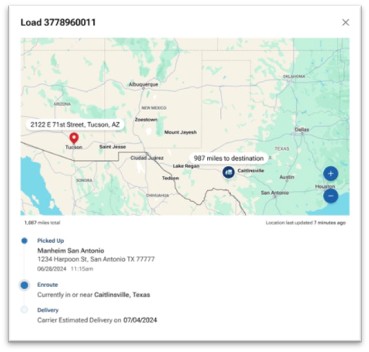
- Real-time location will automatically update every five miles while enroute (this may vary for private marketplaces)
- To protect carrier privacy and safety, location is approximate within .03 miles
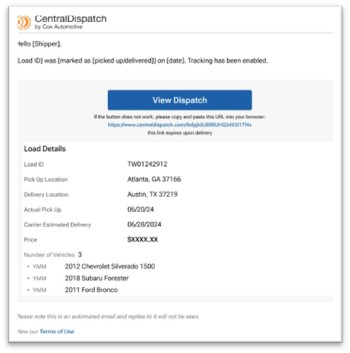
1. After the pickup and delivery inspection is complete, the shipper will receive an email with the status of the load and a link to view the location of the vehicle on map
2. Map will display approximate location, timestamp of last update, miles remaining
3. If the carrier completed a pickup inspection tracking will be enabled, the dispatch card will have a bullet indicating Locations tracking on and Track Shipment button will be available to view real-time location at any time
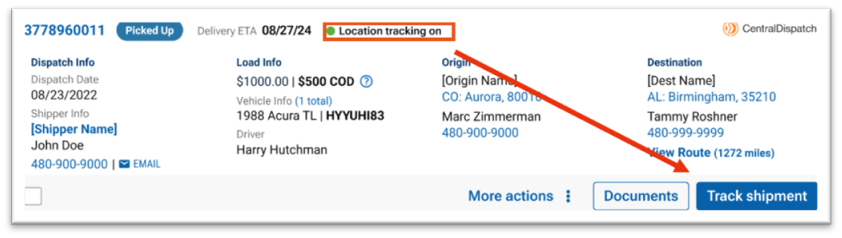
4. If an inspection has not been completed, the dispatch card will display a bullet stating Location tracking off

Map Views
Shippers will continue to get emails after pickup and delivery inspection when using the CD Mobile App, the email will also include a link to view real-time tracking
After delivered, the map view will display a pin at the location of the delivery inspection
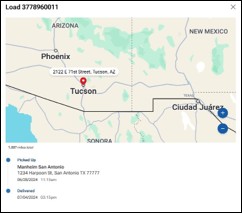
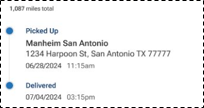
If the dispatch is archived, map view will be available
If cancelled, the map view will display last recorded location, time and date and tracking will stop
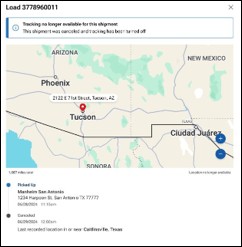
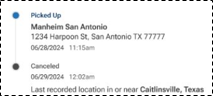
Track Shipment button
View real-time tracking anytime by clicking on the Track Shipment button on the dispatch card for orders that are in a Picked-Up status
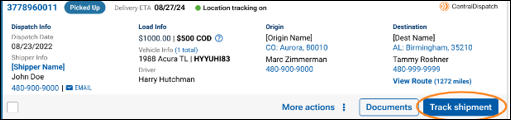
For loads in a Delivered, Cancelled or Archived status the Track Shipment button will be available under More Actions
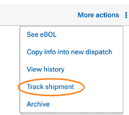
Note: Track Shipment will be available is inspection was completed with mobile app
Privacy, Safety, and Location Sharing
• To protect privacy and safety, the carrier’s location will always be shown with an approximate radius view
• Location data will only be available for the shipper account that is managing the vehicle’s transportation
Error Messages
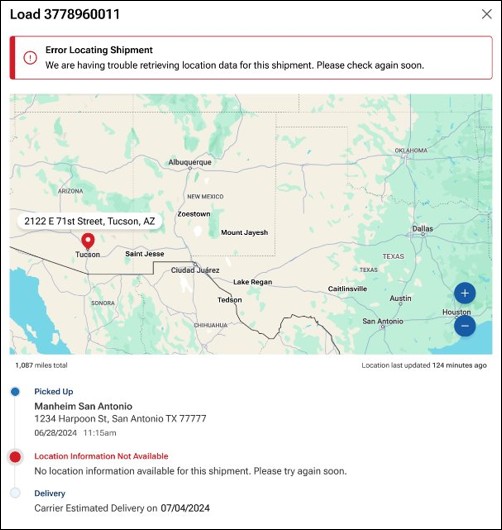
“Error Locating Shipment“
This error message may appear if:
- Location permissions have been disabled
- The carrier’s device is on Airplane Mode or in an area with poor service
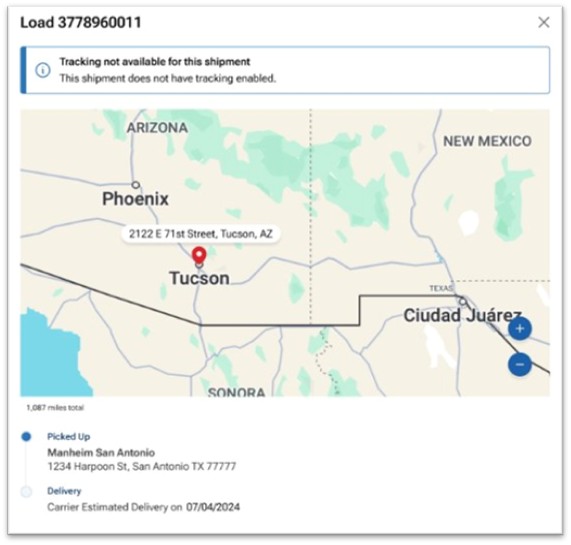
“Tracking not available for this shipment“
This message may appear if:
- A pickup inspection was not completed.
- The pickup inspection was completed prior to the deployment of real-time tracking.
Shippers are now able to receive live location and status updates delivered straight to their devices, including GPS location, ETA, eBOL information, and more, as long as carriers are using the Central Dispatch app. This allows shippers to easily stay on top of shipments and streamline communication, while saving carriers time by not needing to provide manual status updates. It’s the best way to strengthen relationships between shippers and carriers, and maximize confidence when transporting vehicles.
Want to learn more? Check out our quick guide on Real-Time Tracking
